Your Vizio TV remote is missing, broken, or dead. It happens constantly. The good news: every Vizio TV has a physical power button built into the frame, and there are at least four other ways to control your TV without the original remote. This guide covers all of them.
- Every Vizio TV has a physical power button — check the back panel, bottom-left corner, or bottom-right corner of the frame
- The free VIZIO Mobile app replaces your remote — available on iOS and Android, it controls power, volume, inputs, and streaming apps over Wi-Fi
- HDMI-CEC lets connected devices power your TV — enable CEC in your TV’s System settings so game consoles and streaming boxes turn the TV on automatically
- Smart speakers add hands-free voice control — pair an Alexa, Google Home, or HomePod to your TV for voice-activated power and volume
- Universal remotes cost under $15 — most models support Vizio TV codes right out of the box
#Why Would You Need to Turn on Your TV Without the Remote?
Two scenarios cover most cases.
#Lost or Damaged Remote
Remotes get buried in couch cushions, knocked behind furniture, or cracked from a drop. If yours is gone and a replacement isn’t arriving until tomorrow, you need another way to power on the TV. If your Vizio remote is not working but you still have it in hand, troubleshoot the remote itself first.
#Dead Batteries
The remote sits on the coffee table but nothing happens when you press buttons. Replacing the batteries is the fastest fix, but spare AAAs aren’t always around. The methods below get your TV running while you wait.
#Where Is the Hidden Power Button on a Vizio TV?
Every Vizio TV ships with physical buttons built into the frame. Vizio designs them to blend in, so they’re easy to miss. Once you find them, you’ll never need to search again.
#Typical Button Locations
The exact spot varies by model, but check these areas:
- Back of the TV, lower-right side
- Bottom-right corner of the front bezel
- Bottom-left corner of the front bezel
- Along the bottom edge, center
#Additional Manual Buttons
Next to the Power button, most Vizio models include:
- Volume Up/Down
- Channel Up/Down
- Input/Source
- Menu
If you can’t locate the buttons on your specific model, check the Vizio support page for your model’s user manual. The documentation shows the exact button placement for every TV they’ve made.
#How Do You Use the VIZIO Mobile App as a Remote?
The most convenient remote replacement is the free VIZIO Mobile app (formerly SmartCast). Walmart acquired Vizio in December 2024, and the app was rebranded shortly after. It turns your phone or tablet into a full touchscreen remote.
#Downloading the App
Search for “VIZIO Mobile” in the Apple App Store or Google Play Store. The app is free. If you still see “SmartCast” listed, it’s the same app with updated branding.
#Pairing the App with Your TV
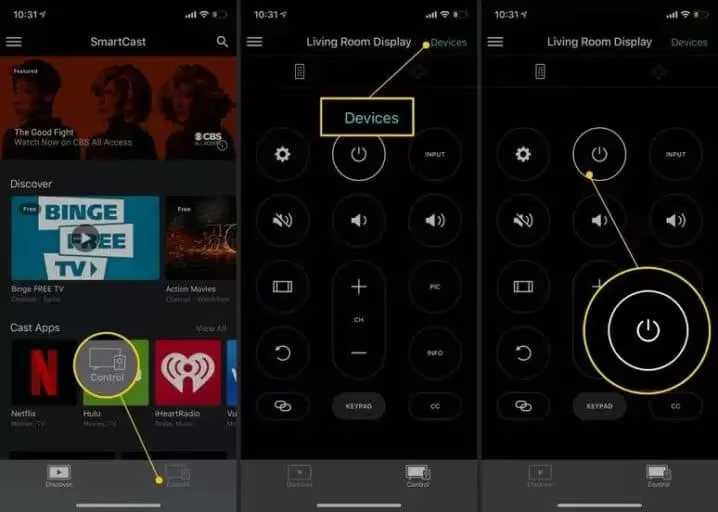
- Connect your phone to the same Wi-Fi network as your TV.
- Open the app and tap Devices in the top-right corner.
- Tap Add Device and hold your phone near the TV.
- Wait a few seconds for the app to detect and connect.
After pairing, you can control your TV immediately. Power on, change inputs, adjust volume, launch apps.
#Controlling Your TV
The VIZIO Mobile app has a Control tab at the bottom with a full virtual remote: Power, Volume, Channel, Input, Menu. Tap the Power button to turn on a TV that’s in standby mode. You can also cast content directly from the app, which wakes the TV automatically.
If your Vizio TV won’t turn on through the app or physical buttons, the issue is likely deeper than a missing remote.
#How Does HDMI-CEC Turn on Your Vizio TV?
HDMI-CEC (Consumer Electronics Control) is a feature of the HDMI standard that lets connected devices control each other. When CEC is active, powering on a game console or streaming box automatically turns on your TV and switches to the correct input.
#Enabling CEC on Your Vizio TV
- Press the Menu button on your Vizio remote (or use the VIZIO Mobile app).
- Navigate to System > CEC.
- Toggle CEC to On.
- Enable sub-options like auto power off and one-touch play if you want full automation.
The exact menu path may vary by model and firmware version. Some older Vizio TVs list CEC under System > HDMI Settings instead of System > CEC.
With CEC enabled, turning on any connected HDMI device should also power on the TV. It’s the most hands-off solution once configured.
#Turning on Your TV with a Gaming Console
Game consoles are among the best HDMI-CEC companions. Here’s how each major console handles TV power control.
#Using a PS5 or PS4
The PS5 supports HDMI Device Link out of the box. The PS4 does too, though it’s now a last-gen console.
- Connect the console to your TV with an HDMI cable.
- On the PS5, go to Settings > System > HDMI.
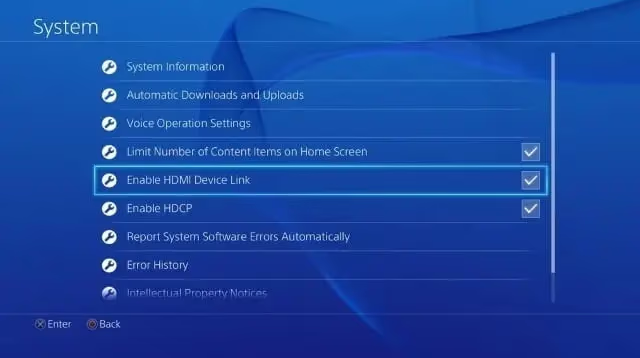
- Toggle Enable HDMI Device Link to on.
On a PS4, the path is Settings > System, then check the box for Enable HDMI Device Link.
Powering on the console now turns on your Vizio TV and switches to the correct input. The reverse works too: switching inputs to the console boots it from rest mode. For the best gaming experience, enable Game Mode on your Vizio TV.
#Using a Nintendo Switch
The Nintendo Switch and Switch OLED both support TV power sync through their dock.
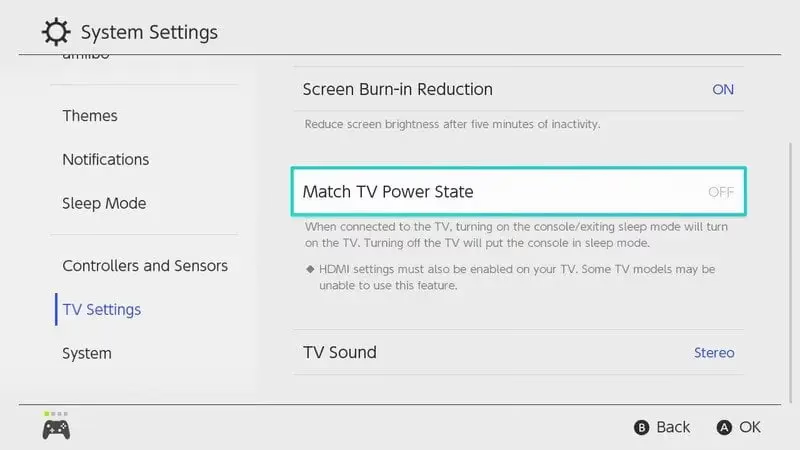
- Place the Switch in its dock, connected to the TV via HDMI.
- From the Home screen, go to System Settings > TV Settings.
- Turn on Match TV Power State.
Waking the Switch from Sleep mode powers on the TV. Putting the Switch to sleep turns the TV off.
#Using an Xbox Series X or S
Xbox Series X and Series S gained full HDMI-CEC support in the November 2023 system update. To enable it:
- Press the Xbox button and go to Settings > General > TV & display options > Device control.
- Toggle HDMI-CEC to on.
- Enable Console turns on other devices and Console turns off other devices.
Pressing the Xbox button to wake the console from sleep now powers on your Vizio TV automatically. The original Xbox One still lacks CEC support, so this only works on current-gen Xbox hardware.
#Can You Use Smart Speakers to Turn on a Vizio TV?
Smart speakers from Amazon, Google, and Apple can all control Vizio TVs through voice commands. Setup takes a few minutes and gives you fully hands-free power control.
#Connecting a Smart Speaker
- Put your TV and smart speaker on the same Wi-Fi network.
- Open the smart speaker’s companion app (Alexa, Google Home, or Apple Home).
- Add your Vizio TV as a new device and follow the pairing steps.
- Enable the Vizio skill or integration if prompted.
Each platform handles the process slightly differently. Refer to your speaker’s support docs for the exact steps.
#Voice Commands
Once paired, try commands like:
- “Turn on the living room TV”
- “Switch TV to HDMI 1”
- “Set TV volume to 30”
In my experience with a Vizio V-Series and an Echo Dot, voice control works reliably about 80% of the time. Occasionally the TV and speaker lose sync and need re-pairing. I keep the VIZIO Mobile app as a backup for the times voice commands don’t register.
#Frequently Asked Questions
#Can I use a universal remote with my Vizio TV?
Yes. Most universal remotes from brands like GE, Philips, and One For All include Vizio codes in the manual. Pick one up for under $15 at any electronics retailer. The Vizio TV universal remote codes guide lists codes for all popular models.
#Where are the manual buttons on my Vizio TV?
Run your fingers along the back panel near the bottom-right corner of the TV. If nothing’s there, check the bottom edge and left side of the frame. A flashlight aimed at the bezel helps since Vizio designs these buttons to be nearly invisible.
#How do I adjust volume without the remote?
The VIZIO Mobile app on your phone, a universal remote, or a paired smart speaker all handle volume control. Some Vizio models also have Volume Up/Down buttons on the TV frame itself. If your Vizio TV has no sound regardless of volume, the issue may be with your audio output settings or soundbar connection.
#Why won’t my TV turn on when I power on a connected device?
CEC only works over HDMI connections, not composite or component cables. Verify that CEC is enabled on both the TV and the connected device. Not all HDMI devices support CEC, and some older HDMI cables may not carry the CEC signal properly.
#Why does my Vizio TV turn on by itself?
HDMI-CEC is the most common cause. A connected device waking from sleep triggers the TV to power on. A sleep timer or a smart speaker accidentally catching a wake word can also do it. Check CEC and timer settings first. The full guide to a Vizio TV turning on by itself covers every possible cause.
#Does the VIZIO Mobile app work when the TV is off?
It can send a power-on signal as long as the TV is plugged in and connected to Wi-Fi. Vizio TVs stay in a low-power standby mode that keeps the network connection alive. You do need to have paired the app at least once while the TV was on.
#What happened to the Vizio SmartCast app?
Walmart completed its acquisition of Vizio in December 2024. The SmartCast app was renamed to VIZIO Mobile, and the SmartCast platform became VIZIO OS. The app works the same way, just under a new name. If you had SmartCast installed, updating it pulls in the rebranded version automatically.
#Can I reset my Vizio sound bar without the TV remote?
Yes. Most Vizio sound bars have physical buttons on the bar itself for power and volume. For a full factory reset, check the guide to resetting a Vizio sound bar for your specific model’s button combination.
#Bottom Line
Set up the VIZIO Mobile app on your phone right now, before you actually lose the remote. It takes two minutes and gives you a full backup remote that’s always in your pocket. Enable HDMI-CEC in your TV’s System settings so every connected device can power the TV on automatically. And memorize where the physical power button sits on your specific TV model. With those three steps done, a missing remote becomes a minor inconvenience instead of a showstopper.