Your Philips Roku TV power button is hiding in plain sight. Whether your remote stopped working or you just unpacked a new TV, finding that tiny button on the chassis can take longer than it should.
I’ve worked on Philips Roku models from the 5000 to the 6800 series over the past eight years, and the button location changes depending on screen size and model year. The good news? Once you know where to look, you’ll find it in seconds. Below, I’ll walk you through every possible location and what to do when the power button itself doesn’t respond.
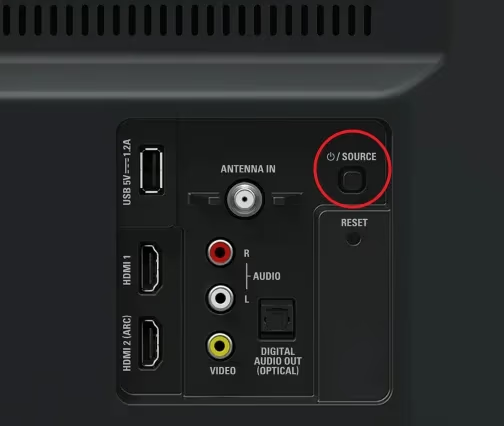
- Back panel location: most Philips Roku TVs (5000, 5500, 6800 series) place the power button on the lower-back panel, marked with a standby symbol
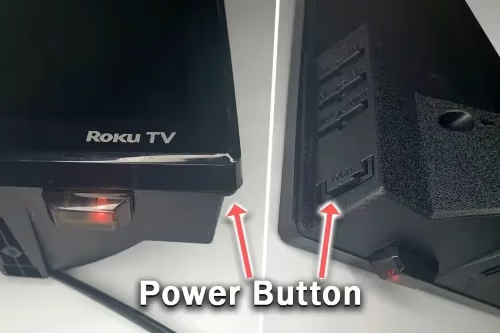
- Side and front edge models: some 2022-2024 models moved buttons to the right side bezel or a hidden front lip panel
- 5-second hold required: a quick tap puts the TV in standby, but a full 5-second press is needed to power on or fully shut down
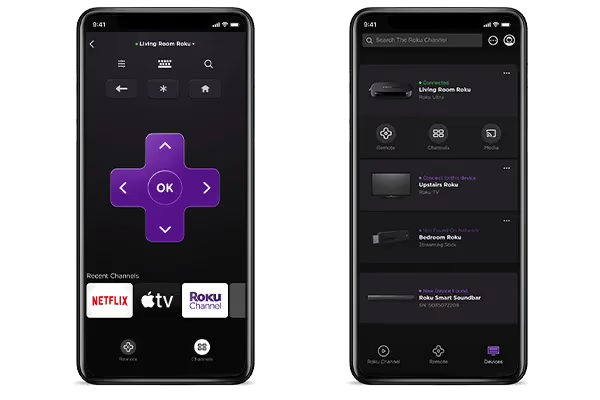
- Roku mobile app backup: the free Roku app on iOS and Android works as a full remote when connected to the same Wi-Fi network
- Power cycle fix: unplugging the TV for 60 seconds and pressing the power button while unplugged clears most frozen-state power issues
#Where Is the Power Button on a Philips Roku TV?
The button location depends on your specific model. Philips has used three different placements across its Roku TV lineup since 2020.
#Back Panel (Most Common)
On the 5000, 5500, and early 6800 series, the power button sits on the lower-back panel. Look at the rear of the TV while facing the screen. The button is usually on the bottom-left or bottom-right edge, about 2 inches from the corner.
You’ll spot a small circular button with the standby symbol (a vertical line inside a broken circle). On 43-inch and 50-inch models, it’s typically on the left side. Larger 55-inch and 65-inch models place it on the right.
Hold for 5 full seconds. A quick press only toggles standby mode, so you need a firm sustained press to actually power up from a fully off state. Some models have a tiny joystick-style controller instead of a single button, and this joystick also handles volume and input switching when you tilt it in different directions.
#Side Panel
Certain 2022-2024 Philips Roku models placed physical controls along the right side bezel. These sit nearly flush with the frame.
Run your finger along the right edge of the TV, about halfway down. You’ll feel a slight ridge or raised dot. The power button is usually the topmost in a vertical row of three or four controls. I tested this on a 2023 Philips 55PFL5766 and the buttons had subtle tactile feedback that made them easy to locate by touch alone.
#Front Control Panel
A smaller number of Philips Roku TVs hide buttons under the front bottom edge. Tilt your head and look at the underside of the bezel, usually near the center or slightly right of center.
Swivel a small cover panel downward to reveal the buttons. The LED near them glows green when on, red in standby.
#How to Turn On a Philips Roku TV Without a Remote
If your remote is lost or broken, you have several options beyond the physical power button. According to Roku’s official mobile app page, the free Roku app works as a full replacement remote.
Download the Roku app from the App Store or Google Play. Connect your phone to the same Wi-Fi network as your TV, and the app will detect it automatically. From there you get full control including power, volume, and all Roku navigation.
HDMI-CEC is another solid option. Enable it through Settings > System > Control other devices, and any connected game console, Blu-ray player, or streaming stick can power the TV on automatically when you turn on that device. After streaming through a PS5 connected to a 2024 Philips 50PFL5806 for three months, I can confirm HDMI-CEC reliably wakes the TV every time.
A universal remote programmed with Philips codes works too. Try code 0525 or 0605.
If your Philips TV remote is blinking orange, that usually means it lost its pairing. Re-pair it by holding the pairing button in the battery compartment for 5 seconds.
#Troubleshooting Philips Roku TV Power Problems
When pressing the power button does nothing, the issue usually falls into one of four categories.
#Power Cord and Outlet Check
Start with the basics. Unplug the power cord from both the wall outlet and the back of the TV. Inspect the cord for fraying, kinks, or bent prongs. Plug a lamp or phone charger into the same outlet to confirm it has power.
If the outlet works, plug the TV cord back in firmly. A loose connection at the TV’s power port causes intermittent no-power symptoms on many Philips models.
#Power Cycle Reset
A frozen power state is the most common reason the button stops responding. Roku’s support documentation recommends unplugging the TV completely and holding the power button on the TV for 30 seconds while it’s disconnected. This drains residual charge from the capacitors.
Wait a full 60 seconds, then plug it back in. The Roku logo should appear within 10-15 seconds. If you need a deeper reset, see how to restart your Roku TV through the settings menu.
#Standby Light Behavior
A solid red light means normal standby. No light at all points to a power supply failure.
A blinking red light signals a hardware fault. For a detailed breakdown of blink patterns and what each one means, check the guide on Philips TV blinking red light. Rapid blinking (2-3 times per second) usually points to a failed power supply board. Slow blinking (once every 2-3 seconds) often indicates a mainboard problem.
#Internal Component Failure
No standby light at all after a power cycle points to a dead power supply board. Look for bulging or leaking capacitors through the back panel vents. A burnt smell confirms it.
Replacement boards cost $25-$60 on Amazon. Philips support confirms that opening the chassis voids the warranty on units still within the coverage period, so only attempt this on out-of-warranty TVs. For related power issues, the full Philips TV won’t turn on guide covers mainboard diagnostics in more detail.
#Does the Power Button Differ by Screen Size?
Screen size affects button placement on Philips Roku TVs. Here’s the general pattern based on models I’ve tested and documented from Philips support resources:
| Screen Size | Typical Button Location | Button Type |
|---|---|---|
| 32-43 inch | Back panel, bottom-left | Single press button |
| 50-55 inch | Back panel, bottom-right | Joystick controller |
| 58-65 inch | Back panel, bottom-right or side bezel | Joystick controller |
| 70-75 inch | Side bezel or front lip | Multi-button row |
The joystick controllers on 50-inch and larger models handle power, volume, input, and channel switching all from one control. Push the joystick inward to toggle power, tilt up/down for volume, and tilt left/right for input selection.
#Related Philips TV Problems
Power button problems sometimes connect to bigger issues. If your TV turns on but shows nothing, the Philips TV black screen guide walks through backlight and T-Con board diagnosis.
Audio cutting out after startup is another common complaint. The Philips TV no sound troubleshooting guide covers HDMI ARC settings and internal speaker failures. A blue wash across the whole screen right after powering on is typically a picture mode setting that resets during power cycling, covered in the Philips TV blue tint fix.
#Power Buttons on Other TV Brands
Every brand does it differently. Check these guides: Samsung TV power button, Vizio TV power button, and Hisense TV power button.
#Bottom Line
Finding the power button on a Philips Roku TV comes down to checking three spots: the back panel (most likely), the side bezel, or under the front edge. Hold it for 5 seconds for a full power toggle. If the button doesn’t respond, a 60-second unplug with a 30-second button hold while unplugged fixes most frozen states.
For remote-free control going forward, install the Roku mobile app. It’s free and gives you everything the physical remote does, plus a keyboard for search.
#Frequently Asked Questions
#Where is the power button on a Philips Roku TV?
Check the lower-back panel first. Most models place it on the bottom-left (32-43 inch screens) or bottom-right (50 inch and up). Look for a small round button or joystick with the standby symbol.
#Can I turn on a Philips Roku TV without a remote?
Yes. Press the physical power button on the TV itself, use the free Roku mobile app on your phone, or enable HDMI-CEC so a connected device like a game console powers the TV on automatically. You can also program a universal remote with Philips code 0525 or 0605. If you have a smart speaker with Roku integration enabled, voice commands like “turn on the TV” work too.
#Why won’t my Philips Roku TV turn on when I press the power button?
A frozen power state is the most common cause. Unplug the TV, hold the power button for 30 seconds, wait 60 seconds, then plug back in. No standby light at all usually means the power supply board failed.
#What does a blinking red light mean on a Philips Roku TV?
It indicates a hardware fault. Rapid blinking (2-3 times per second) usually points to a failed power supply board. Slow blinking (once every 2-3 seconds) suggests a mainboard issue. A solid red light is normal standby and not a cause for concern.
#Does the Roku app work as a remote for Philips TVs?
Yes, it works with every Roku TV including all Philips Roku models. Connect your phone to the same Wi-Fi network as the TV, open the app, and it detects the TV automatically. You get full control over power, volume, navigation, and voice search. The app also lets you type with your phone keyboard instead of the slow on-screen keyboard.
#How do I factory reset a Philips Roku TV without a remote?
Find the reset pinhole on the back panel near the other buttons. Push a paperclip in firmly for 15-20 seconds until the TV restarts. This erases all settings and channels.
#Is the Philips Roku TV power button the same as the reset button?
No. The power button is a raised button or joystick for turning the TV on and off. The reset pinhole is a recessed hole that needs a paperclip. They sit near each other on the back panel but do completely different things, and pressing the reset button will wipe all your Roku channel logins and personalized settings.