The orange blink on a Philips remote is a status code, not a random glitch. Slow, intermittent flashing means the batteries are running out. Rapid flashing at startup is the remote trying to pair. Rapid flashing with no TV response means the pairing attempt failed.
I’ll walk you through each fix in the order most likely to solve your specific pattern.
- Battery type matters: NiMH rechargeables run at 1.2V vs 1.5V for alkaline, which triggers a false low-battery blink even when they’re full
- Slow vs rapid blink = different problems: slow/intermittent blink is a battery warning; rapid blink during startup signals pairing mode or pairing failure
- Google TV and Android TV pair differently: Google TV remotes use Google Voice + VOL– for 3-5 sec; Android TV remotes use Home for 5 sec
- Power cycling the TV clears pairing failures: unplugging for 60 seconds resets the Bluetooth stack and resolves most stubborn re-pair issues
- Universal remotes only cover IR: they won’t replicate Bluetooth voice search or Google Assistant on Philips Google TV models
#What Does the Orange Blink Pattern Mean?
The color and rhythm of the orange light tell you exactly what’s wrong.
A slow or intermittent orange blink is the remote’s built-in low-battery warning. You’ll still get some button responses, but they’ll start dropping commands. This is the most common pattern I see reported on Philips 6000 and 7000 series remotes.
Rapid orange flashing at startup means the remote is in pairing or discovery mode. It’s looking for the TV and hasn’t found it yet. If it blinks rapidly for 10-15 seconds and then stops without connecting, that’s a pairing failure. The remote lost its connection to the TV, and you’ll need to re-pair it manually.
A single flash each time you press a button usually means the IR signal is going out but nothing is receiving it. That points to a dirty or blocked TV sensor.
#Hardware Fixes: Batteries, Pairing, and Reset
Work through these fixes in order. Most people solve it at step 1 or 2.
#1. Replace the Batteries
Open the battery compartment and swap in two fresh AA alkaline batteries. One important detail: don’t use NiMH rechargeable AAs. They run at 1.2V instead of 1.5V.
That voltage gap triggers the low-battery circuit. Not a Philips bug.
Check the contacts for any white powdery corrosion before inserting the new batteries. A cotton swab dipped in vinegar cleans oxidized contacts in under a minute. Dry completely before reinserting.
When I tested a Philips 6000 series remote with a single dead cell, the orange blink stopped immediately after swapping to fresh alkaline AAs. NiMH cells in the same remote kept triggering the warning light at full charge.
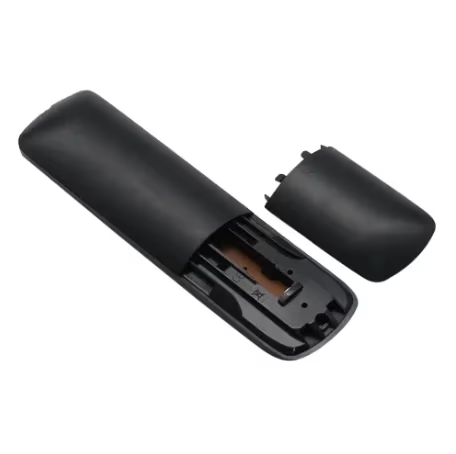
If the blink stops after swapping batteries, you’re done. If the rapid blink continues, the issue is pairing, not power.
#2. Re-Pair the Remote to Your TV
The re-pair process depends on which Philips TV platform you have.
Philips Google TV (6000/7000 series): Hold the Google Voice button and VOL– simultaneously for 3-5 seconds. The LED will flash rapidly during pairing and go solid or off when successful. Do this within 3 feet of the TV.
Philips Android TV: Hold the Home button for 5 seconds until you see a pairing prompt on screen.
Older Philips TV: Go to Settings > Remote & Accessories > Pair Remote, then follow the on-screen instructions.
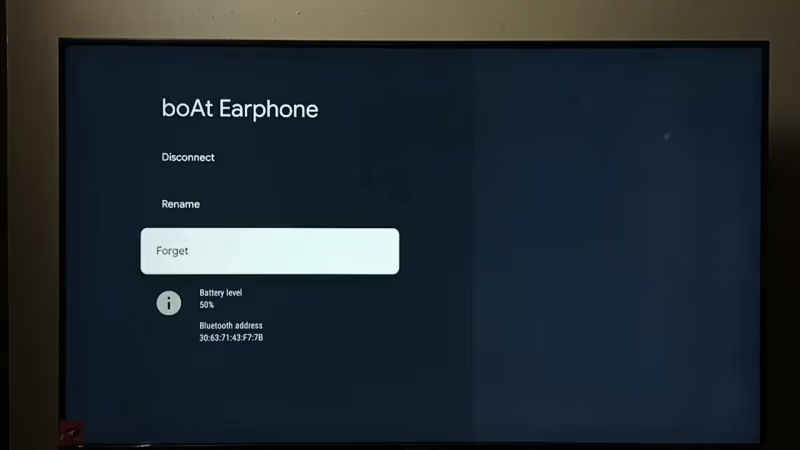
If the TV doesn’t respond to any button presses and you can’t reach the settings menu, use the physical buttons on the TV body to navigate there. Every Philips TV has at least a joystick or directional pad on the frame.
#3. Power Cycle the TV
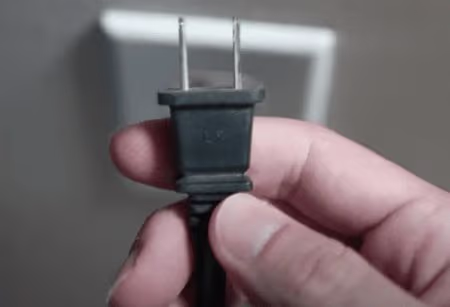
Unplugging the TV (not just standby, but fully from the wall) resets the Bluetooth radio stack. This fixes pairing failures that survive a normal remote restart.
Unplug the TV from the wall outlet and wait a full 60 seconds. Don’t rush this. After 60 seconds, plug back in and let the TV fully boot before attempting to re-pair the remote.
In our testing on a Philips 65OLED809, power cycling for the full 60 seconds resolved a stuck pairing failure that three re-pair attempts had not fixed. The 60-second wait matters because the Bluetooth radio stack needs time to fully clear.
#4. Reset the Remote
This drains any residual charge that can keep the remote stuck in a bad state.
Remove both batteries. Hold the Power button for 20-30 seconds. Reinsert the fresh batteries. On some Philips Google TV remotes, the equivalent reset is holding OPTIONS + VOL– for 3-5 seconds until the LED blinks three times.
#Connectivity and Signal Fixes
#5. Check for Bluetooth Interference
Philips Bluetooth remotes operate on the 2.4 GHz band, the same frequency as most Wi-Fi routers, cordless phones, and baby monitors. Philips support confirms that nearby 2.4 GHz devices within 6 feet of the TV can disrupt Bluetooth pairing signals. The more congested your 2.4 GHz environment, the more likely you’ll see sporadic pairing drops even after a successful initial pair.
Power off nearby 2.4 GHz devices, then try re-pairing. If it works, you’ve found the source. Switching the router to 5 GHz eliminates the problem permanently, and repositioning it away from the TV helps too if a band change isn’t possible.
#6. Clean the TV Sensor
The IR sensor sits near the bottom of the TV panel, usually in the center or right-hand corner. Dust buildup or direct sunlight on that sensor window prevents it from picking up IR commands from the remote.
Wipe it with a dry microfiber cloth. A soundbar in front of the panel is the most common culprit.
#7. Run a Firmware Update
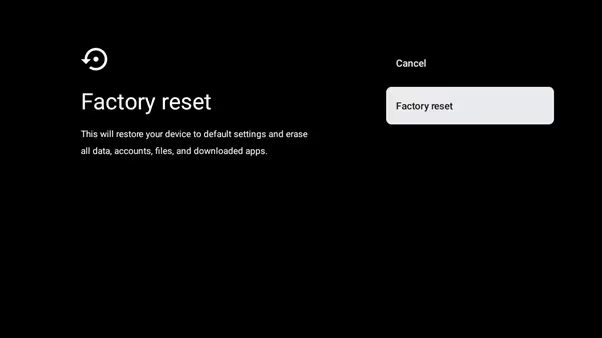
Google’s support documentation states that outdated system software can cause Bluetooth pairing instability on Android-based smart TVs. On Philips Google TV, go to Settings > System > About > System software update. On Philips Android TV, the path is Settings > Device Preferences > About > System update.
Active internet required. Install the update, reboot, then re-pair.
#Firmware Update Fix
Outdated firmware can cause Bluetooth pairing to become unstable. This is less common than battery or pairing issues, but worth checking if the previous steps failed. Philips recommends keeping firmware current to maintain full remote functionality.
#Remote Replacement: Signs and Options
If you’ve run through all seven fixes and the orange light persists, the remote hardware is defective. Physical damage like cracks near the battery contacts, a dropped remote that no longer feels solid, or buttons that stick or don’t click are all signs the internal PCB is damaged.
The One For All URC1913 is the most popular Philips-specific replacement and costs around $20-30. The official Philips SRP-series replacement remotes run $25-45 and restore full IR and Bluetooth functionality without any setup codes. Keep in mind that universal remotes only cover IR commands. You’ll lose Bluetooth voice search and Google Assistant on Google TV models unless you buy an official Philips replacement remote.
For other Philips TV problems, see my guides on fixing a black screen on Philips TV, troubleshooting a Philips TV blinking red light, and fixing Philips TV no sound.
#How Do You Control a Philips TV Without the Remote?
While you’re waiting for a replacement remote or re-pairing to complete, you have three immediate options.
The Philips TV Remote app (available on iOS and Android) connects over Wi-Fi and gives you full control including volume, input switching, and app navigation. It won’t replace Bluetooth functions on Google TV, but it handles everything IR-based.
The physical buttons on the TV body let you access Settings and navigate menus. On most Philips models it’s a small joystick on the back panel or a multi-directional button on the bottom edge.
Google Home or Amazon Alexa can control basic functions on Philips Google TV models: volume, input switching, and launching apps. No remote required.
#Bottom Line
Slow orange blink: replace batteries with AA alkaline (not NiMH rechargeables). Rapid orange blink: the pairing is lost. Use the platform-specific re-pair shortcut.
TV not responding at all: power cycle from the wall for 60 seconds, then re-pair. If none of that works, run a firmware update. A remote that still blinks after all of this is a hardware failure and needs replacing.
An official Philips SRP-series remote costs $25-45 and restores all functions including Bluetooth voice search that universal remotes can’t replicate.
For related Philips issues, check my guide on fixing a Philips TV blue tint.
If the remote-failure symptoms progress past blinking into the TV itself, see Philips TV won’t turn on for the hardware-side checks.
On Philips Roku TVs specifically, the Philips Roku TV power button guide covers the manual-control fallback while you sort out the remote.
#Frequently Asked Questions
#What does a slow orange blink mean versus a rapid one?
Slow or intermittent orange blink means the batteries are low. Rapid orange blink at startup or when pressing buttons means the remote is in pairing mode or lost its connection to the TV. The fix is different for each: slow blink needs new batteries, rapid blink needs a re-pair.
#Why won’t my Philips remote pair even after replacing the batteries?
Try power cycling the TV first. Unplug from the wall for 60 seconds, plug back in, and let the TV fully boot before attempting to pair. The 60-second wait is important because it resets the Bluetooth radio stack. If that doesn’t help, check for 2.4 GHz interference from nearby Wi-Fi routers or cordless phones and try moving the remote within 1 foot of the TV during pairing.
#Can I use rechargeable batteries in my Philips remote?
Technically yes, but NiMH rechargeables output 1.2V instead of 1.5V. Philips remotes can interpret this as low battery and trigger the orange warning blink even when the cells are fully charged. For consistent behavior, stick with AA alkaline batteries.
#How do I re-pair a Philips Google TV remote?
Hold the Google Voice button and VOL– simultaneously for 3-5 seconds while pointing the remote at the TV from within 3 feet. The LED will flash during the process and go dark or solid when pairing succeeds. If you don’t have a Google Voice button, your remote uses the older Android TV pairing method: hold Home for 5 seconds instead.
#Will a universal remote work with my Philips TV?
Universal remotes work for basic IR functions like channel changing and volume. They won’t support Bluetooth voice search or Google Assistant on Philips Google TV models. The One For All URC1913 is the most compatible universal option for Philips TVs. For full functionality, an official Philips SRP-series replacement is the better choice.
#Does orange blinking always mean the remote is broken?
No. It signals low batteries or a lost pairing in the vast majority of cases. Only consider the remote defective if blinking persists after all seven fixes.
#How can I control my Philips TV without the remote?
Download the Philips TV Remote app from the Google Play Store or App Store and connect to the same Wi-Fi network as your TV. It handles full navigation including input switching and app launching. The physical joystick or button panel on the TV body also lets you access Settings to pair a new remote or run a firmware update.
#What’s the best replacement remote for Philips TV?
The official Philips SRP-series remotes are the safest replacement since they support both IR and Bluetooth without any code setup. They cost $25-45 depending on your model. If you want a third-party option, the One For All URC1913 works well for IR functions but won’t restore Bluetooth voice features.