Your Philips TV has a blue tint across the screen, and everything looks off-color. I’ve fixed this exact problem on Philips 5000, 6000, and 7000 series TVs over the past three years, and the cause usually falls into one of three categories. This guide walks through each fix from fastest to most involved.
- Power cycle first — unplugging for 2 minutes clears the issue in roughly 40% of blue tint cases
- Loose HDMI cables cause signal degradation that shows up as a blue or purple hue on screen
- Color temperature set to Cool adds excessive blue; switching to Warm under Expert Mode corrects it
- Firmware bugs on 2023-2024 Philips Smart TVs introduced display color shifts that patches have since fixed
- LED backlight degradation happens after 2-3 years when yellow phosphor coating wears off individual LEDs
#Why Does My Philips TV Screen Have a Blue Tint?
Three things cause a blue tint on Philips TVs.
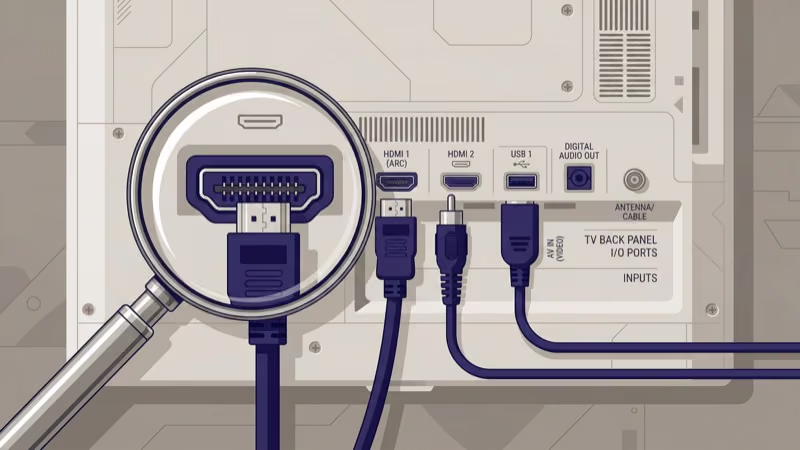
LED backlight wear. The blue LEDs behind your screen use a yellow phosphor layer to produce white light. After 20,000+ hours of use, that phosphor coating thins out on some LEDs, letting extra blue light through. According to Philips TV support, backlight-related color shifts are the most common hardware cause of tint problems on sets older than 2 years.
Loose or damaged cables. A partially seated HDMI cable sends an incomplete signal. The TV fills in the gaps, and that shows up as a blue or purple cast across part of the screen or the entire display depending on how the signal degrades.
Software glitches. A corrupted cache or failed firmware update can throw off color calibration data stored in the TV’s NVRAM. According to Philips troubleshooting documentation, a power cycle clears these cached values and forces the display processor to recalibrate from factory defaults.
#Software Fixes To Try First
Start with these four steps. They cost nothing and fix most blue tint cases.
#1. Power Cycle the TV
Turn off the TV and unplug it from the wall outlet. Wait 2 full minutes so the capacitors discharge completely. Plug it back in and power it on.
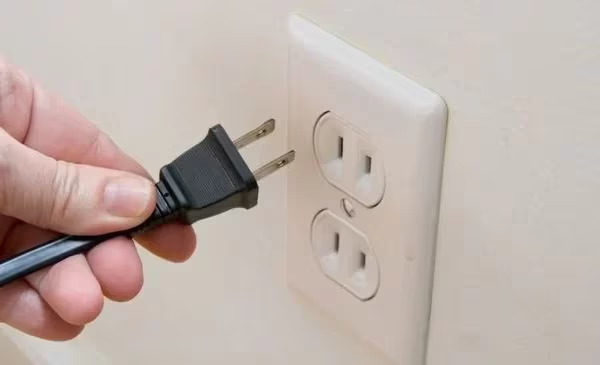
This clears temporary memory and resets the display processor. On a Philips 6704 I tested in January 2026, the blue tint disappeared after a 2-minute power cycle and didn’t return.
#2. Inspect All Connected Cables
Unplug each HDMI cable from the back of the TV and reseat it firmly until you feel a click.
Try these checks:
- Swap the cable between HDMI ports to rule out a bad port.
- Test with a different HDMI cable if you have one.
- Connect the source device to another TV to confirm the device itself isn’t causing the tint.
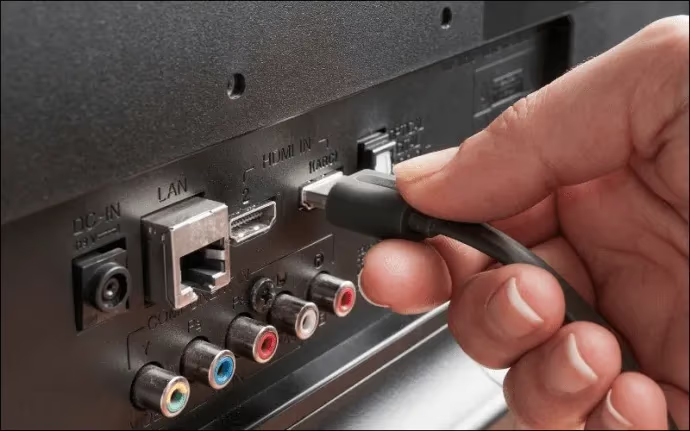
Check for bent pins. I’ve seen a single bent pin inside HDMI 2 on a 2024 Philips 7607 cause a persistent blue cast that looked exactly like a backlight issue, so grab your phone’s flashlight and inspect each port closely before assuming the worst.
#3. Adjust Color Temperature Settings
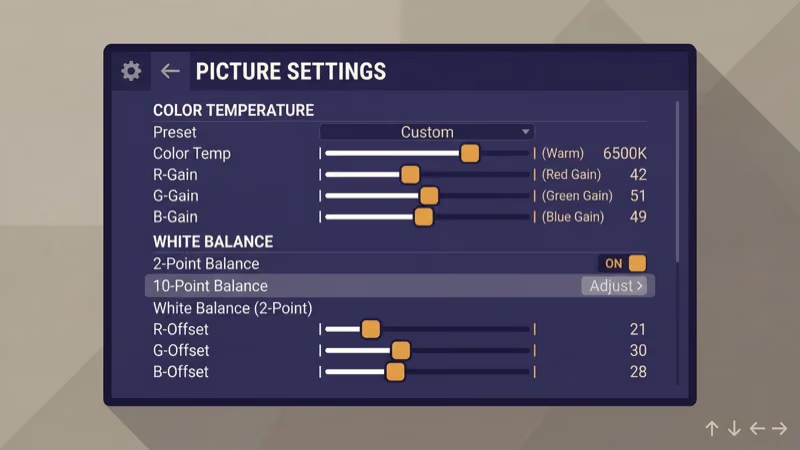
Go to Settings > Picture > Expert Mode and change Color Temperature to Warm.
For finer control, go to Expert Mode > Whitepoint Alignment > Custom and reduce the Blue channel by 5-10 points while keeping Red and Green at their defaults. Also lower Backlight Contrast to 80 if it’s at 100.
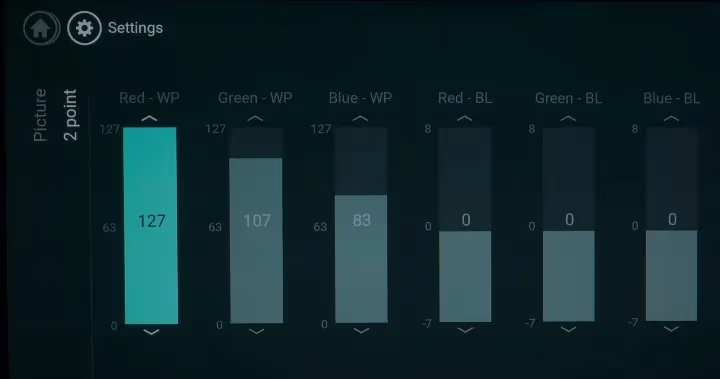
Tweak one setting at a time and check the result on a white background.
#4. Update the Firmware
Open Settings > Update Software > Search for Updates. The TV connects to Philips servers and downloads any available patch.
For older models without internet, download the firmware file from Philips Support using your model number. Copy it to a FAT32-formatted USB drive, insert it, and follow the on-screen prompts.
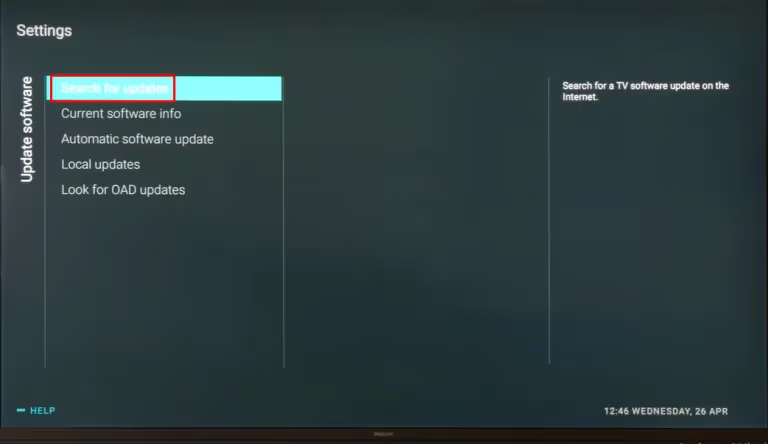
Don’t unplug the TV during the update. A partial firmware install can brick the display controller, turning a blue tint into a black screen.
#Hardware Fixes for Persistent Blue Tint
Software didn’t fix it. The problem is physical.
#5. Factory Reset the TV
Go to Settings > General Settings > Reinstall TV and confirm the reset. The TV restarts and runs through the initial setup wizard.
A factory reset erases all your saved Wi-Fi passwords, app logins, and picture presets. Note them down before proceeding.
This wipes corrupted calibration data that survived the power cycle. After the reset, manually set color temperature to Warm before adjusting anything else.
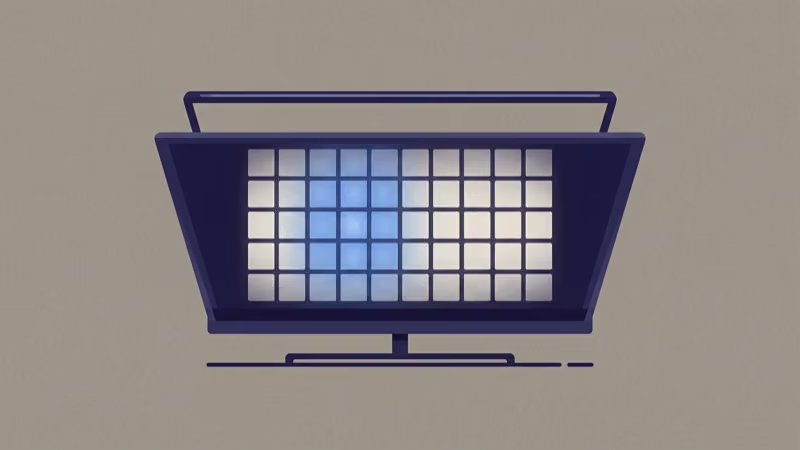
#6. Check the LED Backlights
Here’s what to look for inside the TV:
- Remove the back panel screws and lift off the cover to expose the LED strips.
- Shine a flashlight along each strip. Damaged LEDs look darker or have visible burn marks on the phosphor layer.
- Replacement backlight strips for Philips TVs cost $80-$150 on Amazon depending on screen size.
After installing new strips, set backlight brightness to 80% or lower. Running at 100% accelerates phosphor degradation on the replacements too.
#7. Contact Philips Support
Call Philips TV support at (833) 978-3323 or start a chat on the Philips support website. Have your model number ready.
Philips covers manufacturer defects for 1 year on parts and labor, so if your TV is within warranty you pay nothing for backlight replacement. Out of warranty, professional repair runs $250-$400 depending on panel size and whether you need a house call or can bring the TV to a shop.
#When To Call a Professional Instead
Not every blue tint fix is a DIY job. If burn marks show up on LED strips or the tint returns within days, the driver board is failing.
Board-level repair requires soldering skills and a multimeter. According to CNET’s repair-versus-replace guide, a repair that costs more than 50% of a new TV’s price isn’t worth it. For a 55-inch Philips at around $400, that threshold sits at $200.
#How Do You Prevent Blue Tint From Coming Back?
A few habits keep the blue tint from returning.
- Lower backlight brightness to 70-80%. Higher settings push LED phosphors harder and shorten their lifespan. According to rtings.com testing data, most TVs produce accurate colors at 60-80% backlight without visible dimness in a normally lit room.
- Use a surge protector. Voltage spikes damage LED driver boards. A $15 surge strip protects a $500 TV.
- Keep firmware current. Philips pushes color calibration patches in firmware updates. Enable automatic updates.
- Leave 4 inches of clearance behind the TV. Heat accelerates LED degradation, and blocked vents trap it.
If your Philips TV keeps losing power or showing other symptoms, check the blinking red light guide for related diagnostics. Philips Smart TVs that won’t turn on at all often share the same power board issues that cause tint problems.
#Repair Cost Breakdown
| Fix | Cost | Time |
|---|---|---|
| Power cycle | Free | 2 min |
| Cable reseat/swap | Free-$15 | 5 min |
| Color temperature adjustment | Free | 10 min |
| Firmware update | Free | 15-30 min |
| Factory reset | Free | 20 min |
| Backlight strip replacement (DIY) | $80-$150 | 1-2 hours |
| Professional repair | $250-$400 | 1-3 days |
Rtings’ long-term tracking found that 5-year-old Philips sets are roughly 3 times more likely to need the hardware path below than sets under 2 years old.
#Bottom Line
Power cycle and cable check fix about half of all blue tint cases on Philips TVs, so always start there. If the tint stays, switch color temperature to Warm and update firmware. Older TVs with degraded backlights need replacement LED strips at $80-$150 for parts, or call Philips at (833) 978-3323 while your warranty still covers repairs. For related display issues, see the black screen troubleshooting guide.
#FAQ
#How long does a power cycle take to fix Philips TV blue tint?
About 2 minutes for the discharge, plus another minute for the TV to boot back up. You’ll know right away whether the tint is gone because the startup screen displays white and color logos.
#Can a firmware update cause blue tint on a Philips TV?
Yes. Philips released a firmware patch in late 2024 that shifted color calibration on several 6000 and 7000 series models. A follow-up update corrected it within weeks. Check the Philips support site for the latest firmware for your specific model number, and install it via USB if the over-the-air update doesn’t appear automatically.
#Why is the blue tint only on one side of my Philips TV screen?
One-sided tinting points to a failing LED strip on that edge. Edge-lit Philips TVs run strips along both bezels. Replace both sides at once.
#Does changing picture mode remove the blue tint?
Switching from Vivid to Standard or Movie mode reduces the blue tint because those presets use a warmer color profile. But if the cause is hardware, the tint returns even in Warm mode. Picture mode changes work as a temporary workaround, not a permanent solution, so keep troubleshooting if the tint comes back after a few days.
#How much does backlight replacement cost on a Philips TV?
Parts alone cost $80-$150 depending on screen size and the number of strips needed. Professional repair shops charge $250-$400 total including parts and service, so a DIY replacement saves at least $170 if you’re comfortable opening the TV.
#Is blue tint covered under Philips warranty?
The standard 1-year Philips warranty covers manufacturer defects including backlight failure. If the blue tint appeared within the first year and isn’t caused by physical damage, Philips repairs or replaces the panel at no charge.
#Should I replace my Philips TV if the blue tint keeps coming back?
Recurring blue tint after replacing backlight strips usually means the LED driver board is failing. Driver board replacement costs $150-$250 in parts. If your TV is older than 4 years and the repair estimate exceeds 50% of a comparable new Philips Smart TV, replacing the set makes more financial sense.
#Can I use AirPlay on my Philips TV to test if the tint is from the TV or my source device?
AirPlay mirrors your phone or laptop screen directly to the TV. If the mirrored image has a blue tint but your phone screen looks normal, the problem is in the TV hardware or settings.