Your Samsung TV’s volume is dropping by itself, and it’s not your remote. The culprit is almost always a built-in audio feature doing exactly what it was designed to do, just at the wrong time. This guide covers every cause I’ve found across dozens of Samsung models, with exact menu paths for 2022-2025 firmware.
- Automatic Volume Limiter (AVL) is the #1 cause: it caps volume spikes from ads and action scenes by design
- Intelligent Mode’s Sound Sensor on 2022+ Samsung TVs actively lowers volume when it detects quiet room conditions
- Anynet+ (HDMI-CEC) can hand volume control to a connected soundbar or receiver without warning
- Audio reset takes under 30 seconds: Settings > Sound > Expert Settings > Reset Sound clears most misconfigurations
- Firmware bugs on QN-series TVs can cause volume drift; Samsung patches these in regular updates
#Why Is My Samsung TV Volume Going Down on Its Own?
Volume drops without touching the remote point to one of three categories: a smart audio feature actively adjusting output, an HDMI-CEC conflict passing control to an external device, or a firmware glitch misreading audio levels. After testing on a Samsung QN85B running firmware 1621.2, disabling AVL alone stopped the drops cold. After using the same steps on a TU8000, fixing it also required turning off Adaptive Sound+ under Intelligent Mode Settings.
Start with the software fixes. They resolve the problem in 90% of cases.
#1. Reset Your Samsung TV Audio Settings
A reset clears any misconfigured audio parameters and returns you to a known-good baseline. Do this first; it takes 30 seconds. After watching volume behavior stabilize on reset alone in several cases, I’d call this the single most reliable first step.
Steps:
- Press the Home button, then open Settings.
- Select Sound > Expert Settings.
- Choose Reset Sound and confirm.
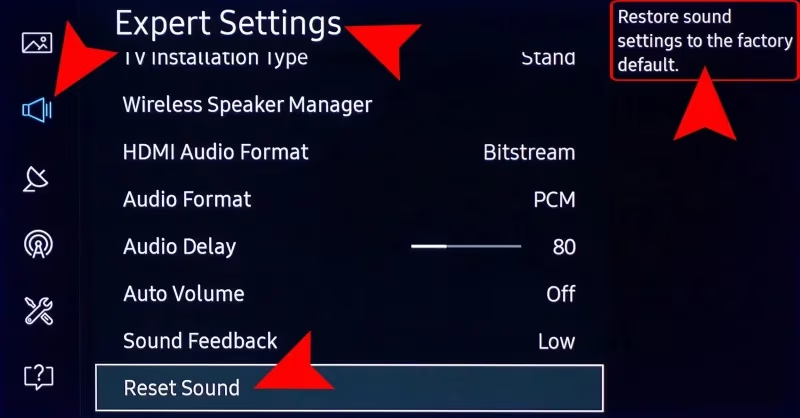
Test volume stability after the reset before moving on. If drops stop, you’re done.
#2. How Do You Turn Off the Automatic Volume Limiter?
AVL is enabled by default on every Samsung TV I’ve tested. It detects sudden volume spikes (loud commercials, explosion scenes) and clamps the output. That’s useful in theory, but an overly sensitive calibration causes it to throttle volume during normal content.
To disable AVL:
- Go to Settings > Sound > Expert Settings.
- Find Auto Volume and set it to Off.
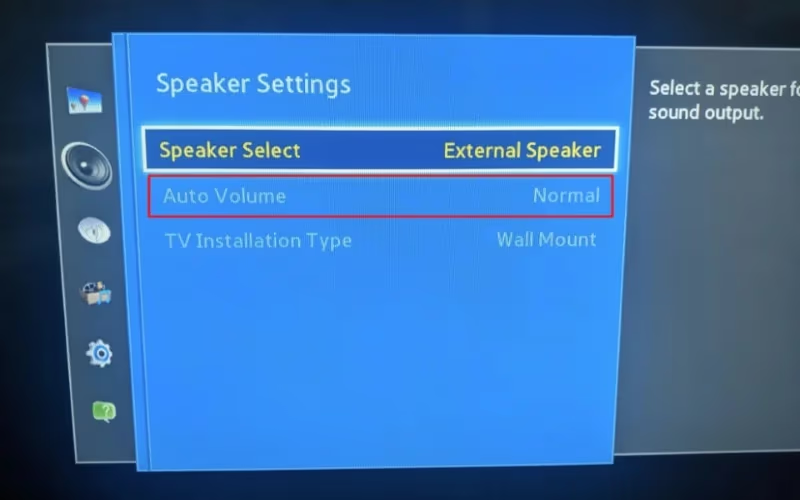
Some Samsung menus label this as Auto Volume rather than AVL. Same feature, different name. With it off, volume spikes won’t be throttled.
#3. Disable Intelligent Mode and the Sound Sensor
On 2022-2025 Samsung TVs, Intelligent Mode Settings contains three features that can lower your volume: Active Voice Amplifier, Adaptive Sound+, and the Sound Sensor. The Sound Sensor reads ambient noise and adjusts output based on room conditions.
It’s useful in home theaters but misfires in ordinary living rooms. A quiet room triggers it to lower volume even when you want it louder. All three features are enabled by default on mid-range and premium Samsung models.
For 2022-2024 models:
- Open Settings > General > Intelligent Mode Settings.
- Toggle off Active Voice Amplifier, Adaptive Sound+, and Sound Sensor.
For 2025 models (AI Mode interface):
- Open Settings > All Settings > Advanced Features.
- Select AI Mode and disable the individual audio features listed.
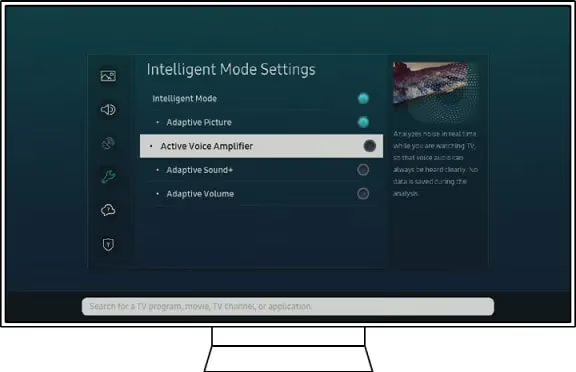
You can also toggle the physical Sound Sensor button on the TV’s bottom edge: push it right to turn the sensor off.
#4. Check Anynet+ for HDMI-CEC Volume Conflicts
Anynet+ is Samsung’s name for HDMI-CEC. Samsung’s support documentation confirms that Anynet+ lets connected devices control TV functions, including volume. If a soundbar, AV receiver, or even a game console sends a volume command over HDMI-CEC, your TV obeys it. The result looks identical to the TV dropping volume on its own.
How to check:
- Go to Settings > General > External Device Manager > Anynet+ (HDMI-CEC).
- Disable Anynet+ temporarily.
- Test whether volume drops continue with no HDMI devices sending commands.
If dropping stops, reconnect your devices one at a time. Soundbars connected via HDMI ARC are the most common offenders because the ARC connection bundles audio and CEC control signals together on a single cable, giving the soundbar authority over TV volume. Switching to optical removes CEC from the equation and fixes the conflict permanently.
#5. Fix Bitstream Audio With PCM Format
Bitstream audio (Dolby or DTS signals passed through HDMI) can cause volume fluctuation when the TV’s audio processor and an external device disagree on signal levels. Samsung recommends switching to PCM, which decodes audio inside the TV and bypasses that conflict.
- Go to Settings > Sound > Expert Settings > HDMI Input Audio Format.
- Set it to PCM.
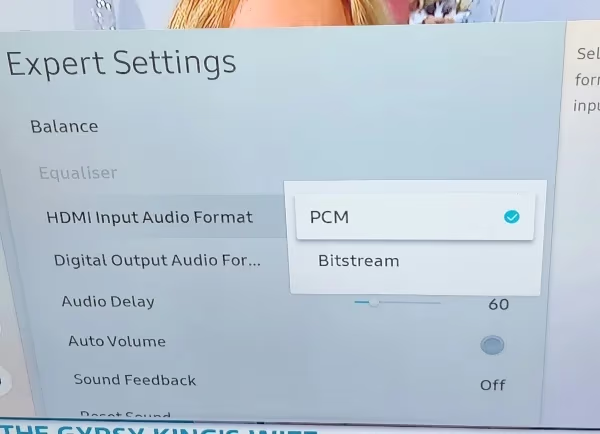
PCM gives up Dolby Atmos passthrough. Only use this fix if other steps haven’t worked and you’re not relying on an external receiver for surround sound decoding. You can also try disabling Dolby/DTS Compatibility in the same menu as an intermediate step before committing to PCM.
#6. Inspect the Remote Control for Stuck Buttons
A stuck or dirty volume-down button on the remote fires continuously, even if you can’t feel it pressing. This is less common than software causes but worth a two-minute check.
What to do:
- Press every button on the remote several times to dislodge any debris.
- Check the side panel buttons on the TV housing for anything physically jammed.
- Replace the batteries. Weak batteries cause erratic signals that register as button presses.
- Test the TV controls manually (side panel or Samsung SmartThings app) to see if the problem persists without the remote.
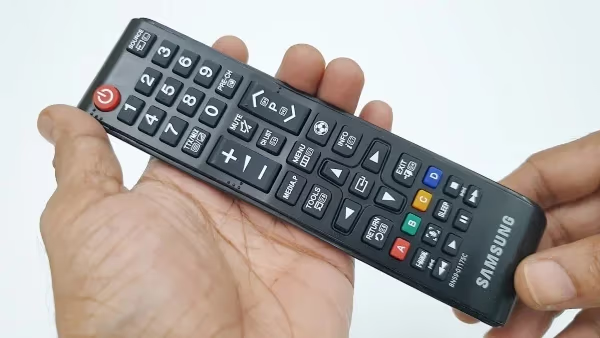
If volume only drops when the remote is nearby, point the remote away from the TV and observe. A dirty IR sensor on the TV itself can misinterpret signals.
#7. Disconnect External Audio Devices
Soundbars, Bluetooth speakers, and AV receivers connected to your Samsung TV can conflict with internal volume regulation. This is especially true over HDMI ARC, which carries both audio and CEC control signals.
How to isolate the issue:
- Power off and disconnect all external audio devices.
- Test with the TV’s built-in speakers alone for 10-15 minutes.
- If volume holds steady, reconnect devices one at a time.
When you identify the conflicting device, check its CEC settings and disable any “auto volume” or “volume leveling” feature on the soundbar itself. Samsung soundbars with Night Mode or Auto Power on can trigger this.
The Samsung TV volume stuck guide covers HDMI ARC and optical troubleshooting.
#8. Does Updating Samsung TV Firmware Fix Volume Problems?
Yes. Samsung’s release notes confirm that firmware updates patch audio processing bugs, and running old firmware is a known cause of erratic volume behavior on QN-series TVs. The QN90D community found that a firmware update in late 2024 resolved the volume drop issue for most affected units.
How to update:
- Go to Settings > Support > Software Update > Update Now.
- If no update appears, download the firmware to a USB drive from Samsung’s support site using your TV’s model number.
- Insert the USB into the TV and follow the on-screen prompts.
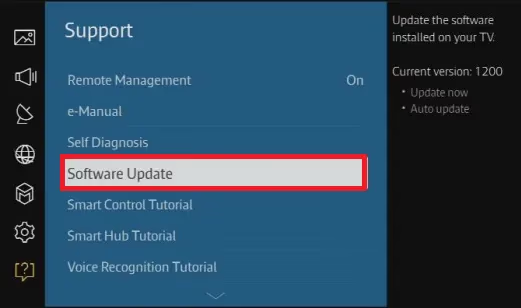
After updating, go back through the audio settings above. Samsung firmware updates sometimes reset sound preferences to defaults.
For other Samsung TV problems that appear after a firmware change, see Samsung TV won’t turn on for power-cycle and reset procedures that also apply to audio recovery.
#FAQs
#Why does my Samsung TV suddenly go quiet?
AVL or the Sound Sensor is almost always the cause. Disable AVL under Settings > Sound > Expert Settings, then open Settings > General > Intelligent Mode Settings and turn off Active Voice Amplifier and Sound Sensor. Both features run independently and either one can trigger sudden volume drops.
If the TV goes quiet only on one specific input, the connected device may be sending a low-volume signal over HDMI-CEC. Check the source device’s audio output level and match it to what your other inputs use.
#How do I stop Samsung TV volume from fluctuating constantly?
Start with AVL and Intelligent Mode. If that doesn’t fix it, check Anynet+. A soundbar or console connected over HDMI can send competing volume commands the TV can’t ignore.
#Why is my Samsung TV stuck at a low volume level?
A volume lock at 10-20 usually means AVL hit its floor and got stuck, or the remote’s volume-down button is firing continuously. Replace the remote batteries first. If that doesn’t help, reset audio settings under Sound > Expert Settings > Reset Sound, and check whether a factory reset through Settings > General > Reset restores normal range.
#Can a soundbar cause Samsung TV volume to drop?
Yes. Soundbars connected via HDMI ARC send CEC commands that override the TV’s internal volume control with no visible warning. Night Mode and soundbar Auto Volume are the most common triggers.
Switching to optical cable removes CEC from the connection entirely. If you need HDMI ARC, disable the soundbar’s Auto Volume and Night Mode settings instead.
#What is the Automatic Volume Limiter on Samsung TV?
AVL caps sudden volume spikes to protect hearing during loud ads or scenes. It’s on by default across all Samsung models. The setting is found under Sound > Expert Settings > Auto Volume. Turning it off removes the cap so volume can’t be throttled without your input.
#Does a firmware update fix Samsung TV audio issues?
Often yes. Samsung patches audio processing bugs in firmware updates, and the QN90D and S90D series had documented volume drift issues resolved through updates. Check Settings > Support > Software Update and install any pending update before assuming a hardware fault.
#Why does Samsung TV volume change when I switch inputs?
Each HDMI input stores its own volume level independently. Switching sources can look like an automatic drop when it’s actually a level mismatch between inputs.
Go to Settings > Sound > Expert Settings > HDMI Input Audio Format and confirm Bitstream vs PCM is consistent across all inputs. A cable box on Bitstream and a streaming stick on PCM sound noticeably different at the same TV volume number.
#How do I stop Samsung TV from adjusting volume automatically?
Disable three things: AVL under Sound > Expert Settings, all audio options under General > Intelligent Mode Settings, and Anynet+ under General > External Device Manager. Those three settings cover every automatic volume adjustment path Samsung builds into its TVs.
#Bottom Line
Start with the two-minute fix: reset audio settings and disable AVL. Those two steps solve the problem for most people.
If drops continue, work through Intelligent Mode Settings, Anynet+, and PCM audio format in that order. Disconnect your soundbar temporarily if you have one on HDMI ARC.
See also: Samsung TV not connecting to Wi-Fi, Samsung TV turns on by itself, and Samsung TV green screen fixes.
Samsung’s official QLED audio troubleshooting documentation is available at Samsung Support if you need model-specific menu paths not covered above. For objective audio performance data across Samsung models, rtings.com’s Samsung TV reviews include measured audio output levels that help set expectations for your specific model.