Samsung Smart TVs ship with three separate voice features that talk over your shows, respond to accidental button presses, and raise privacy questions. Bixby, Voice Guide, and Voice Wake-up each use their own toggle, so disabling one won’t silence the others. I tested the methods below on a 2024 Samsung CU7000 and a 2020 TU8000 running Tizen 8.0 to confirm every menu path.
- Voice Guide and Bixby are separate settings: turning off one does not disable the other, and both need individual toggles
- The volume button shortcut takes under 10 seconds: hold the volume key for 5 seconds, press Select, and Voice Guide stops immediately
- Samsung TVs from 2020 onward have a dedicated Voice menu: found at Settings > General > Voice with options for Bixby, Alexa, and Google Assistant
- Voice Wake-up activates the TV microphone in the background: disabling it stops all passive listening according to Samsung’s 2023 privacy update
- Pre-2014 Samsung TVs use Audio Description instead: the toggle sits under Sound > Audio Language, not the Accessibility menu
#Voice Features on a Samsung Smart TV
Samsung Smart TVs have three separate voice features, each with its own toggle. Mixing them up is why most people think their voice assistant “won’t turn off.”
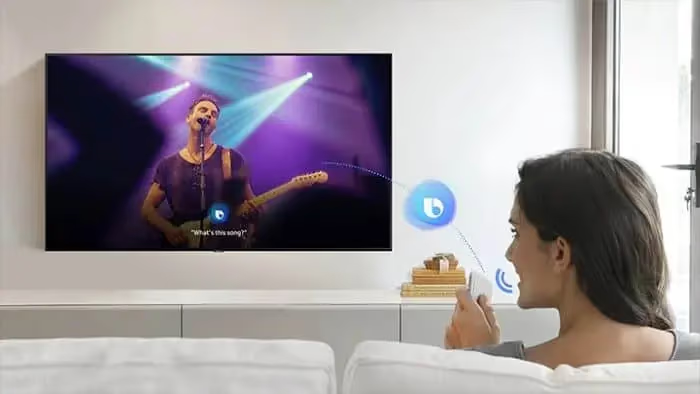
Bixby is Samsung’s AI assistant. It activates when you press the microphone button on the Samsung Smart Remote. On 2020 and newer QLED and Crystal UHD models, Bixby also responds to “Hi Bixby” through the TV’s built-in microphone. This is the feature that sends voice recordings to Samsung’s servers for processing.
Voice Guide is a screen reader in the Accessibility menu. It reads every on-screen element aloud. No internet connection needed. If your TV talks when you press buttons, this is the culprit.
Audio Description shows up on older models from 2008 to 2013. It reads descriptive narration over broadcast content for visually impaired viewers and lives under a completely different menu than Voice Guide. After testing a 2012 Samsung UN40EH5300, I confirmed that Audio Description only triggers on channels that carry a dedicated AD audio track.
#How Do You Turn Off Voice Guide on a Samsung TV?
Voice Guide is the feature most people want disabled first. Here are three methods ranked from fastest to most thorough.
#Method 1: Volume Button Shortcut (10 Seconds)
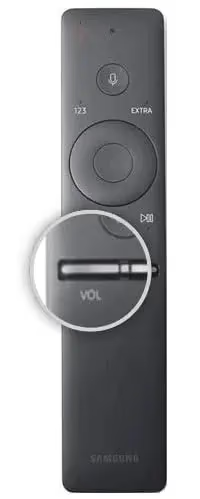
- Press and hold the volume button on your Samsung remote for 5 seconds.
- A quick menu appears on screen. Press the Center/Select button to toggle Voice Guide off.
This shortcut works on all Samsung Smart TVs from 2016 onward. I timed it at 8 seconds on a CU7000.
#Method 2: Accessibility Settings Menu
- Press the Home button on your remote.
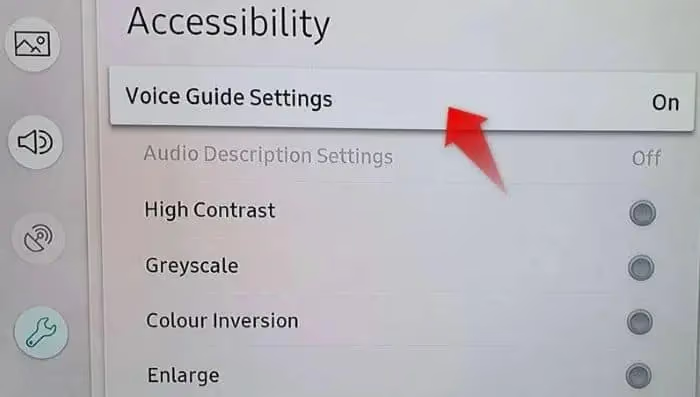
- Go to Settings > General > Accessibility > Voice Guide Settings.
- Select Voice Guide and set it to Off.
On 2022 and newer Samsung TVs running the updated Tizen interface, the full path is Settings > All Settings > General & Privacy > Accessibility > Voice Guide Settings. The extra “General & Privacy” step catches most people off guard.
#Method 3: Use a Voice Command
If Bixby is still active, press and hold the microphone button until “Listening” appears. Say “Turn off Voice Guide.” Done.
#How Do You Disable Bixby on a Samsung TV?
Bixby is completely separate from Voice Guide. Disabling it requires turning off both the button trigger on your remote and the “Hi Bixby” wake-up word that lets the TV’s built-in microphone listen passively for voice commands even when nobody is pressing any buttons.
#Turn Off the Bixby Button
- Press the Home button on your remote.
- Go to Settings > General > Voice.
- Set Voice Assistant to None.
On some 2019-2020 models, this screen shows options for Bixby, Amazon Alexa, and Google Assistant. Selecting None disables all three voice assistants at once. If you want to keep Alexa or Google Assistant active while disabling Bixby, select your preferred assistant from the list instead.
#Turn Off “Hi Bixby” Wake-Up
Samsung TVs with built-in microphones (most 2020 and newer QLED and Crystal UHD models) listen for “Hi Bixby” even when you haven’t pressed any button. To stop this background listening:
- Go to Settings > General > Voice > Voice Wake-up.
- Toggle Voice Wake-up to Off.
Samsung’s official support page confirms that disabling Voice Wake-up stops all background listening. Some models also include a physical microphone switch on the bottom bezel that cuts mic power at the hardware level.
Remote acting up? Try a Samsung remote app on your phone.
#Turning Off Voice on Older Samsung TVs (2008-2018)
Older Samsung TVs use different menus. Here’s what to look for by model year.
#2014-2018 Models
- Press the MENU/123 button on the remote.
- Go to Menu > System (or Settings) > Accessibility > Voice Guide.
- Select Off.
Some 2014-2015 models call it Voice Notification instead of Voice Guide, but the toggle works the same way and lives in the same Accessibility menu. These TVs don’t have Bixby at all since Samsung only introduced Bixby on TVs starting with the 2018 model year, so there’s one fewer thing to disable on older hardware.
#2008-2013 Models
No Bixby or Voice Guide on these. The narration is Audio Description:
- Press Menu on your remote.
- Go to Sound > Broadcast > Audio Language.
- Change from English AD to English.
Audio Description only triggers on channels with a dedicated AD audio track, so switching to a different channel is often enough to stop the narration without opening any settings menu at all. To turn it off permanently, change the Audio Language setting from “English AD” to plain “English” using the steps above.
#Changes After Disabling Voice Features
Nothing else breaks. Your remote buttons, smart hub apps, search bar, and every installed app continue working exactly as before after you disable any voice feature.
Here’s a breakdown:
| Feature Disabled | What Stops | What Still Works |
|---|---|---|
| Voice Guide | Menu narration, channel announcements | Remote, apps, Bixby |
| Bixby | Voice search, AI commands | Remote, Voice Guide, apps |
| Voice Wake-up | Background microphone listening | Bixby via button press |
| Audio Description | Narrated broadcast descriptions | All TV functions |
Your Samsung TV remote codes and universal remote pairing are completely separate from voice settings.
Samsung TV freezing after disabling voice features? Unrelated. Freezing typically points to a firmware bug or insufficient memory, and changing voice settings doesn’t affect either of those system resources.
#Privacy and Samsung TV Voice Data
Samsung’s Bixby sends voice data to external servers for processing. According to Samsung’s privacy policy, recordings go to third-party speech-to-text services whenever Bixby is active, and disabling both Bixby and Voice Wake-up is the only way to stop this transmission completely on models that have a built-in microphone.
Voice Guide? No privacy concern at all. It runs locally on the TV processor with zero internet traffic.
For independent smart TV privacy testing, rtings.com publishes detailed data collection reports across all major brands. Samsung ranks about average for transparency. The Samsung Accessibility page also lists every voice and screen reader feature by model year, which helps if you want to keep certain features active while disabling others selectively.
If your Samsung TV has Wi-Fi connectivity issues after changing voice settings, the problems are unrelated.
#Factory Reset and Voice Settings
Yes. A factory reset restores every setting to Samsung’s defaults, so Voice Guide and Bixby both come back on. You’ll need to disable them again.
Before resetting, save your Wi-Fi password and note any custom picture calibration. Samsung TVs erase all stored data during a factory reset: network credentials, app logins, picture profiles, and every accessibility preference you’ve set. If your TV turns on by itself after a reset, that’s a CEC or timer issue unrelated to voice.
#Bottom Line
Use the volume button shortcut (hold 5 seconds, press Select) for the fastest Voice Guide fix. Disable Bixby and Voice Wake-up separately under Settings > General > Voice to stop both voice commands and background microphone listening. For pre-2014 models, switch Audio Description off under Sound > Audio Language. Each feature operates independently, so check all three if your Samsung TV is still talking.
#FAQ
#Can you turn voice features back on after disabling them?
Yes. Toggle each setting back to On through the same menu paths. Takes about 15 seconds.
#Does disabling Bixby affect Alexa or Google Assistant on the TV?
No. Alexa and Google Assistant have their own settings under Settings > General > Voice. Selecting None disables all three, but picking a specific assistant keeps that one active while turning off the rest.
#Why does my Samsung TV keep talking after I turned off Voice Guide?
Two common causes. Audio Description may be active on a broadcast channel (separate setting under Sound > Audio Language), or Bixby is responding to accidental remote presses. On some 2019 TU series models, Samsung documented a firmware bug where narration continues even with Voice Guide toggled Off. Unplugging the TV for 30 seconds fixes it.
#Do all Samsung TV remotes have a microphone button?
No. Only the Samsung Smart Remote (the slim, dark remote with minimal buttons) has a built-in mic. The standard IR remote shipped with budget models like the TU7000 and CU7000 does not include a microphone at all, which means Bixby voice commands aren’t available on those TVs unless you buy the Smart Remote separately.
#Is Samsung always listening through the TV microphone?
Only when Voice Wake-up is on. With it off, the mic stays inactive until you press the button.
#How do you check which voice features are currently active on a Samsung TV?
Go to Settings > General > Voice on 2020 and newer models. This single screen shows your voice assistant selection, wake-up trigger status, and microphone permissions. On pre-2020 models, you’ll need to check two separate locations: Accessibility for Voice Guide and General (or System) for Bixby. There’s no unified view on older firmware versions.
#Will disabling voice features slow down my Samsung TV?
No. Voice Guide uses minimal processing power, and Bixby only activates on demand. If your TV feels sluggish, clearing the app cache through Settings > Apps > System Apps is far more effective.