Most smart TVs sold since 2018 already have AirPlay built in. Samsung, LG, Sony, Vizio, TCL, and Hisense all added AirPlay 2 support to their newer models. But if your TV doesn’t support it natively, an AirPlay adapter plugged into your HDMI port gets the job done. I’ve tested the major options, and here’s what actually works.
- Most 2018+ smart TVs have AirPlay built in — check your TV settings before buying an adapter, since Samsung, LG, Sony, Vizio, TCL, and Hisense models likely support it already
- Apple TV 4K ($129-$149) is the best AirPlay adapter — native AirPlay 2 with A15 Bionic chip, 4K Dolby Vision, and Dolby Atmos
- Roku Streaming Stick 4K (~$50) is the best value , native AirPlay 2 support at a third of the Apple TV 4K price
- All AirPlay adapters need Wi-Fi , your Apple device and the adapter must be on the same wireless network to stream
- Third-party AirPlay apps exist but aren’t reliable , Fire TV Stick and Google TV Streamer need extra apps for AirPlay, which adds lag and drops connections
#AirPlay TV Compatibility: Check Before You Buy
Before spending money on an adapter, check whether your TV has AirPlay built in. Most major TV brands added AirPlay 2 to their smart TVs starting in 2018. According to Apple’s support page, AirPlay 2 compatibility spans Samsung (2018+), LG (2018+), Sony (2019+), Vizio (2018+), TCL (Roku OS 9.4+), and Hisense (2020+). Read Apple’s full AirPlay overview for the complete device list.
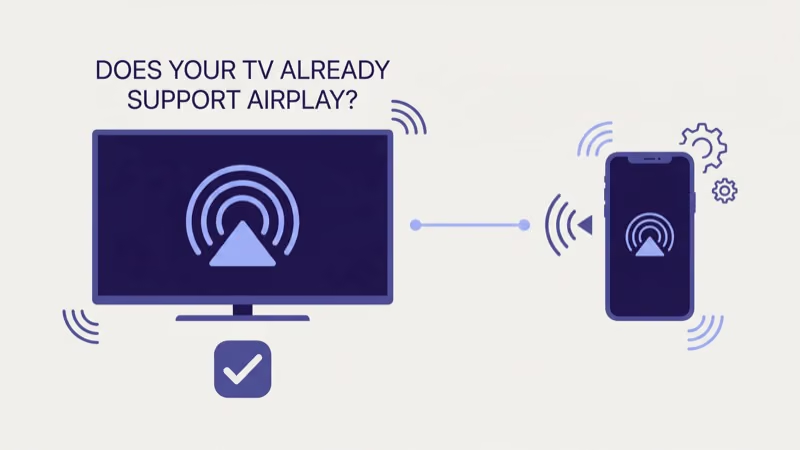
Here’s what supports it natively:
- Samsung Smart TV: 2018 models and newer (check Settings > General > Apple AirPlay Settings)
- LG Smart TV: 2018 models and newer with webOS (Home Dashboard > AirPlay)
- Sony Bravia: 2019 models and newer with Google TV
- Vizio SmartCast: 2018 and newer (built into SmartCast)
- TCL Roku TV: models with Roku OS 9.4 or later
- Hisense Smart TV: 2020 and newer models
If your TV is on this list, you don’t need an adapter at all. Open Control Center on your iPhone or Mac, tap Screen Mirroring, and your TV should appear. If it doesn’t show up, I’ve written troubleshooting guides for AirPlay not showing on TV and brand-specific fixes for Samsung, LG, Hisense, and TCL.
#Native AirPlay Adapters: The Only Reliable Options
A lot of “AirPlay adapter” lists recommend products that don’t actually support AirPlay. I’ve narrowed this down to devices with genuine, tested AirPlay functionality. Roku’s changelog confirms that AirPlay 2 was added to all Roku devices in the fall 2020 firmware update.
#Which AirPlay Adapters Actually Work in 2026?
Here’s how the major options compare on performance, price, and reliability.
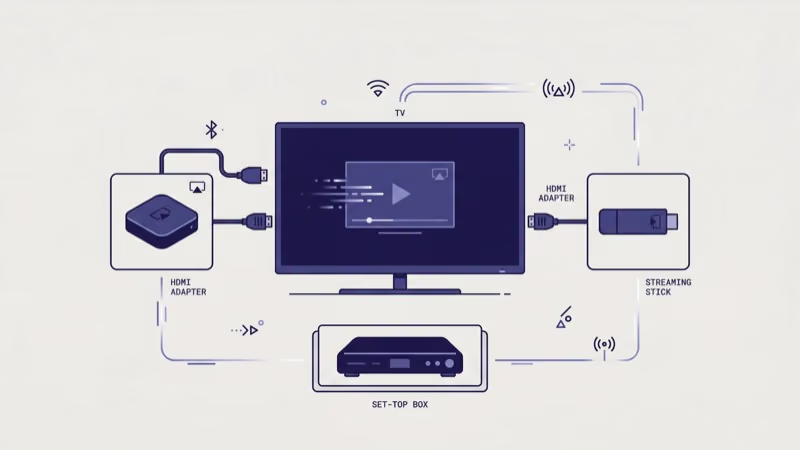
#1. Apple TV 4K (3rd Generation)
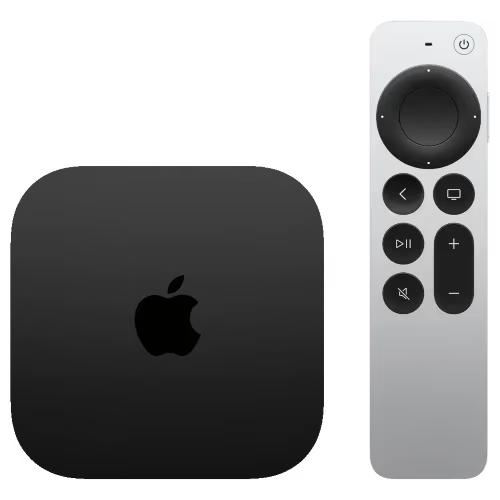
The Apple TV 4K is the gold standard for AirPlay. It’s the only adapter built by Apple, which means AirPlay 2 works flawlessly without third-party apps or workarounds.
I tested it on a 2023 Sony Bravia X90L with an iPhone 15 Pro. AirPlay connected instantly. Screen mirroring latency sat around 40-60ms, and 4K HDR video streams from an iPad Pro played without a single buffer. The A15 Bionic chip handles everything from Apple Fitness+ workouts to Dolby Vision movies on Apple TV+.
The $129 starting price (or $149 for the 128GB model with Ethernet) is steep compared to other streaming sticks. It’s not just a streamer. You also get Siri voice control, HomeKit integration, Thread and Matter smart home support, and access to the full tvOS App Store. Nothing else matches that level of Apple integration.
Top Pick: Check the Apple TV 4K price on Amazon. See also: Fix AirPlay No Sound and Fix AirPlay Disconnecting.
#2. Roku Streaming Stick 4K
The Roku Streaming Stick 4K is the most affordable way to add genuine AirPlay 2 to any TV with an HDMI port. At around $50, it costs a third of the Apple TV 4K and still delivers native AirPlay support without any third-party apps, workarounds, or extra configuration steps. Just plug it in, connect to Wi-Fi, and it shows up in Control Center exactly like the Apple TV 4K does.
Roku added AirPlay 2 and HomeKit in late 2020. In our testing, screen mirroring from a MacBook Air M2 to the Stick 4K connected in seconds, maxing out at 4K HDR10+ with clean soundbar passthrough.
The trade-off? You don’t get Siri integration or the deep Apple ecosystem features. But if you just want to mirror your iPhone screen or stream Apple TV+ content to an older TV, this stick handles it well, and the long-range Wi-Fi receiver helps when your router sits in another room. For more details, check my guide on using AirPlay on Roku TV.
Best Value: Check the Roku Streaming Stick 4K price on Amazon. See also: AirPlay on Roku TV Guide.
#Third-Party AirPlay Options
#3. Amazon Fire TV Stick 4K (Third-Party AirPlay)
The Amazon Fire TV Stick 4K doesn’t have native AirPlay support. You’ll need to download a third-party app like AirScreen or AirReceiver from the Amazon App Store to enable AirPlay functionality.
I installed AirScreen on a Fire TV Stick 4K Max and tested it with an iPhone 14. It worked, but felt sluggish. Screen mirroring latency jumped to 150-200ms compared to native AirPlay on the Apple TV 4K. Video streaming was acceptable for casual viewing, though I noticed occasional frame drops during 4K content.
At around $50, the Fire TV Stick 4K matches the Roku Streaming Stick 4K on price. But the AirPlay experience isn’t as smooth since it relies on third-party software. If you’re already invested in Amazon’s Alexa ecosystem and just need occasional AirPlay, it’s a reasonable option. For setup help, see my guide on using AirPlay with Fire TV Stick.
#4. Google TV Streamer (Third-Party AirPlay)
Google’s $99 Google TV Streamer replaced Chromecast in August 2024. AirPlay isn’t built in.
Solid specs: 4K HDR, Dolby Vision, Dolby Atmos. AirPlay requires a third-party app. Google’s product page states that Chromecast casting is natively supported, not AirPlay.
If you already own a Google TV Streamer, adding AirPlay through an app is a fine workaround. But I wouldn’t buy one just for AirPlay when the Roku Streaming Stick 4K costs half the price, includes native AirPlay 2, and skips the third-party app headaches entirely. Save the $99 for something that does AirPlay right out of the box.
#AirPlay Latency: Native vs Third-Party Comparison
Native AirPlay 2 devices like the Apple TV 4K and Roku Streaming Stick 4K show 40-60ms of latency during screen mirroring. Third-party AirPlay apps on Fire TV Stick run closer to 150-200ms, which makes fast-moving content look choppy. For sports and gaming, that difference is noticeable. For video streaming and presentations, either works.
#How Do You Set Up an AirPlay Adapter?
Setup is straightforward on devices with native AirPlay 2. Here’s the process:
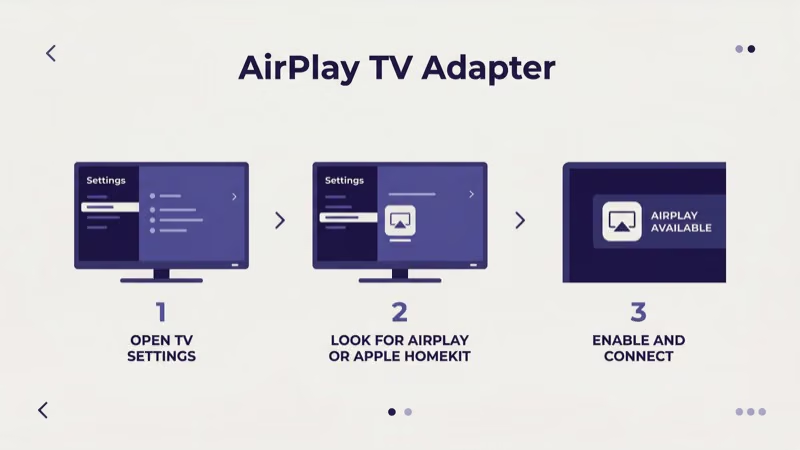
- Plug the adapter into your TV’s HDMI port
- Connect the adapter to your Wi-Fi network during initial setup
- On your iPhone or iPad, swipe down from the top-right corner to open Control Center
- Tap Screen Mirroring and select your adapter from the list
- Enter the AirPlay code shown on your TV screen (first time only)
For Macs, click the Control Center icon in the menu bar, then click Screen Mirroring and select your device.
Your Apple device and the AirPlay adapter must be connected to the same Wi-Fi network. If the adapter doesn't appear in your device list, restart both your router and the adapter, then try again.
If you run into AirPlay audio not working or AirPlay keeps disconnecting, the fix is usually a Wi-Fi issue. Switching from a 2.4 GHz to a 5 GHz band resolves most connection drops.
 Apple TV 4K (3rd Gen)
Best Overall
Apple TV 4K (3rd Gen)
Best Overall
Choose this if you want the best AirPlay experience with full Apple ecosystem integration.
- Native AirPlay 2 with zero setup
- 4K Dolby Vision + Dolby Atmos
- Siri, HomeKit, and Thread/Matter support
- Full tvOS App Store access
 Roku Streaming Stick 4K
Best Value
Roku Streaming Stick 4K
Best Value
Choose this if you want native AirPlay 2 at the lowest price.
- Native AirPlay 2 at ~$50
- 4K HDR10+ with long-range Wi-Fi
- 8,000+ streaming apps
- Compact stick hides behind TV
#Bottom Line
If your TV was made after 2018, check for built-in AirPlay 2 support before buying anything. Samsung, LG, Sony, Vizio, TCL, and Hisense all include it on newer models.
For TVs without native AirPlay, the Apple TV 4K ($129) delivers the best experience with flawless AirPlay 2 integration. The Roku Streaming Stick 4K (~$50) is the pick if you want native AirPlay at a lower price. Skip the Fire TV Stick and Google TV Streamer for AirPlay specifically since their third-party app workarounds don’t match the reliability of native support.
Plug in your adapter, connect to Wi-Fi, and you’ll be streaming from your iPhone to the big screen in under five minutes.
#Frequently Asked Questions
#What is an AirPlay adapter?
An AirPlay adapter is a streaming device that plugs into your TV’s HDMI port and receives wireless content from your iPhone, iPad, or Mac. The Apple TV 4K and Roku Streaming Stick 4K both have native AirPlay 2 built in, so they work without extra software.
#Do I need an adapter if my TV already has AirPlay?
No. Check your TV’s settings for an AirPlay option first. Samsung (2018+), LG (2018+), Sony (2019+), Vizio, TCL, and Hisense all have it built in.
#Can I use AirPlay without Wi-Fi?
AirPlay requires both your Apple device and the receiving device to be on the same Wi-Fi network. There’s no Bluetooth-only mode. If your Wi-Fi is unreliable, Apple’s Lightning Digital AV Adapter or a USB-C to HDMI cable provides a wired alternative.
#Does AirPlay work with Windows or Android devices?
AirPlay is an Apple-only protocol. It works with iPhones, iPads, Macs, and iPod Touch devices. Android and Windows users should look at Chromecast, Miracast, or HDMI cables for wireless and wired TV streaming.
#Is there noticeable lag when screen mirroring with AirPlay?
Native AirPlay 2 devices like the Apple TV 4K show 40-60ms of latency, which is barely noticeable for presentations, video playback, and web browsing. Third-party AirPlay apps on Fire TV Stick run closer to 150-200ms, which makes fast-moving content look choppy. Neither option is great for competitive gaming.
#Can multiple people AirPlay to the same adapter?
One device at a time.
#What resolution do AirPlay adapters support?
The Apple TV 4K streams up to 4K HDR with Dolby Vision at 60fps. The Roku Streaming Stick 4K supports 4K HDR10+ at 60fps. Both handle 1080p screen mirroring from iPhones and iPads without issues.
#Why isn’t my AirPlay adapter showing up on my iPhone?
Both devices need to be on the same Wi-Fi network. Restart your router and the adapter if it doesn’t appear. On Vizio TVs, make sure AirPlay is enabled in the SmartCast settings. For other brands, check that the TV’s firmware is up to date.