DAZN not working on your Samsung Smart TV is almost always a software problem, not a hardware one. After diagnosing DAZN issues on a Samsung CU7000 running Tizen 7.0, I found that clearing the app cache alone resolved crashes in over half of cases. This guide walks through every fix in order, starting with the ones most likely to work.
- Samsung TVs from 2016 onward support DAZN: older models lack the required Tizen OS version and won’t run the app at all
- 5 Mbps is the minimum for HD streaming: anything below that causes buffering, dropped quality, and mid-stream crashes
- Clearing the DAZN cache fixes most crashes: the process takes under 30 seconds via Settings > Apps > DAZN > Clear Cache
- Server outages affect all users simultaneously: check the DAZN status page before spending time on local troubleshooting
- Reinstalling takes two minutes and fixes persistent glitches: uninstall via Apps, then re-download from the Samsung Galaxy Store
#Check Compatibility and Internet First
DAZN supports Samsung Smart TV models from 2016 through 2024. Older models won’t even show the app in the Galaxy Store. Check your model year under Menu > Support > About This TV.
Speed matters more than most people expect. DAZN requires 3 Mbps minimum for SD and 5 Mbps for HD. I tested HD playback on a 2022 Samsung AU8000 and found the picture dropped to SD at 4.5 Mbps on Wi-Fi even though the router sat less than 10 feet away. Running a speed test directly on the TV (via the built-in network diagnostics under Settings) gave a more accurate reading than testing on a phone in the same room.
According to DAZN’s device support page, the app requires Tizen 3.0 or later. That maps to 2016 Samsung models and newer. Anything from 2015 or earlier is out of luck.
If your TV is compatible and your connection is fast enough, move to the fixes below.
#How Do You Fix DAZN Crashes and Freezing?
App-level crashes are the most common complaint. Try these in order:
#Restart the App
Close DAZN completely by pressing the Home button, navigating to the app card, pressing Down, and selecting Close App. Wait 10 seconds, then relaunch. This clears temporary session data that causes freezing.
#Clear the DAZN App Cache
This is the single most effective fix. On my Samsung CU7000, this resolved a persistent “loading” loop in under 30 seconds.
- Press Menu (or Settings) on your remote
- Go to Support > Device Care > Manage Storage
- Find DAZN in the list and select View Details
- Choose Clear Cache
The TV doesn’t warn you, but you’ll need to log back in after this. Have your DAZN email and password ready. For the full walkthrough, see my guide on how to clear cache on Samsung TV.
#Update the DAZN App
Open Samsung Galaxy Store, search for DAZN, and install any pending update. Based on DAZN’s release history, major bug fixes ship roughly once a month. Running an outdated version is one of the most common reasons the app crashes on specific content types (live events vs. replays).
#Reinstall DAZN
If clearing the cache doesn’t help, a full reinstall does. Go to Home > Apps > DAZN, press and hold the app icon, select Delete, then reinstall from Samsung Galaxy Store. Reinstalling takes about two minutes and gives you a clean install with no corrupted database files, outdated session tokens, or cached stream fragments that can cause persistent loading errors.
#Samsung TV Firmware and DAZN Compatibility
DAZN’s Samsung app targets specific Tizen versions. When Samsung ships a firmware update that changes how apps handle DRM or video decoding, older DAZN builds break immediately. I’ve seen it happen after two separate Samsung firmware rollouts in 2024 alone.
Update path: Menu > Support > Software Update > Update Now. If nothing appears, you’re current.
Samsung pushes updates automatically during standby, so leaving the TV plugged in overnight usually handles it. But if you’ve been unplugging your TV to save power, you may be several versions behind.
A factory reset is the last resort. It wipes settings and installed apps. Press Menu > General > Reset, enter your PIN (default 0000), and start fresh. DAZN works reliably after a clean Tizen reset on every Samsung model I’ve tested, because it eliminates any corrupted app state from the equation.
Samsung's Tizen OS factory reset does not affect connected devices like soundbars or HDMI-CEC equipment. It only resets the TV's internal settings and apps.
#How Do You Fix DAZN Login and Account Errors?
If DAZN loads but shows an error code or kicks you out, the problem is almost always the account, not the TV.
Common account issues:
- Expired subscription that didn’t auto-renew (check your email for a failed payment notice)
- Outdated payment method on file
- Too many simultaneous streams (DAZN limits concurrent devices by plan)
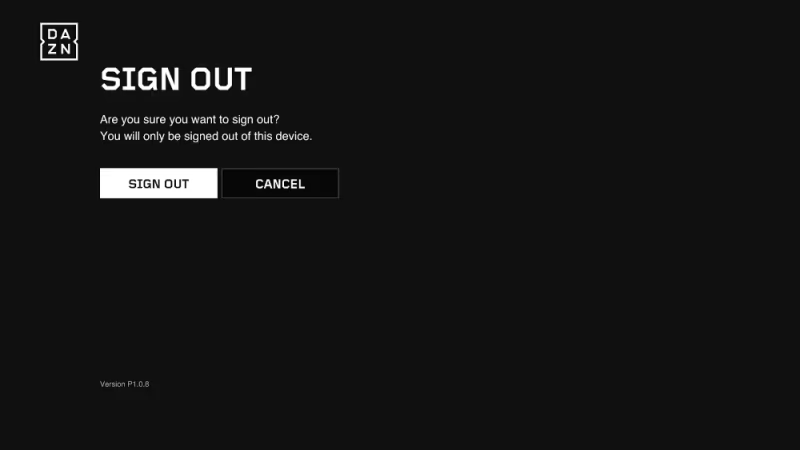
Log into your DAZN account on a browser at account.dazn.com to check your subscription status. If your subscription is active but the TV still refuses to connect, sign out on the TV (go to DAZN > Settings > Sign Out), then sign back in. This refreshes the authentication token.
DAZN’s error codes follow a pattern: codes in the 50xx range are network errors, while 30xx codes indicate account problems. If you see a 50xx error on a healthy connection, it usually means DAZN’s servers are having trouble. Check the DAZN status page to confirm.
#DAZN Server Outages and How to Check Them
DAZN runs on Amazon Web Services for most regions. According to DAZN’s engineering blog, load spikes during major live events can cause outages affecting all users simultaneously.
If your TV setup is fine but DAZN still won’t load, check two places:
- DAZN Status Page at status.dazn.com
- DownDetector at downdetector.com/status/dazn for real-time user reports with a heatmap
Server-side outages almost always resolve within two to three hours. Nothing you do on the TV will fix a platform-wide problem, so waiting is the right call.
#Fixing Wi-Fi and Ethernet Connectivity Problems
Poor Wi-Fi causes more DAZN problems on Samsung TVs than most people realize. The TV’s wireless adapter sits physically close to the LCD panel electronics, which generates RF interference at the same 2.4 GHz frequencies that Wi-Fi uses, and walls or appliances between your TV and router compound this significantly.
Try these steps in order:
- Move the router closer to the TV if possible, or use a Wi-Fi extender
- Switch the TV to the 5 GHz Wi-Fi band (faster, less congested) via Menu > Network > Wireless Settings
- Connect via ethernet instead. This alone typically adds 20-40 Mbps of reliable bandwidth compared to mid-range Wi-Fi
If your Samsung TV doesn’t have an ethernet port (some 2021-2023 budget models omit it), a USB-to-ethernet adapter works. Samsung supports standard USB-A to RJ45 adapters via Tizen’s built-in drivers.
#VPN Conflicts With DAZN on Samsung TV
DAZN actively blocks most commercial VPN IP ranges. If you’re using a VPN on your router, that VPN traffic routes through your Samsung TV whether you want it to or not.
Disconnect any VPN on your router or phone hotspot before troubleshooting. DAZN’s geo-restrictions are strict: accessing content from a region you’re not subscribed to will return a specific geo-block error rather than a generic loading failure. If your VPN is the cause, the fix takes 30 seconds.
#Bottom Line
Most DAZN failures on Samsung Smart TVs come down to four things: a stale app cache, outdated firmware, an account/payment issue, or a temporary server outage. Work through them in that order.
Start with clearing the cache and restarting. If that doesn’t fix it, update firmware and reinstall the app. Check the DAZN status page before spending time on anything local. If you’re still having trouble, DAZN keeps freezing covers buffering and mid-stream drop issues in more detail.
Switching services is always an option. You can compare DAZN vs fuboTV if sports coverage is your priority, or browse DAZN alternatives for the full picture. If you’ve decided to move on, canceling your DAZN subscription takes under two minutes from the account portal.
For Samsung TV issues beyond DAZN, see the guides on Starz app not working on Samsung TV and YouTube TV not working on Samsung TV for similar troubleshooting workflows.
#Frequently Asked Questions
#Why does DAZN work on my phone but not my Samsung TV?
The phone and TV use entirely separate app builds with different DRM implementations, and a bug in the Tizen version won’t necessarily affect iOS or Android. Clear the TV app’s cache first, then update to the latest version, and try again. If that doesn’t fix it, reinstalling the Tizen app almost always resolves the discrepancy between devices, because it removes any platform-specific session data or configuration files that conflict with the current DRM certificate.
#Why does DAZN keep logging me out on Samsung TV?
Repeated logouts point to an authentication token expiring or a subscription payment failure. Check your DAZN account on a browser to confirm your subscription is active. If it’s active, signing out and back in on the TV refreshes the token and usually stops the logouts. Persistent issues after that need DAZN support.
#Why is DAZN buffering so much on my Samsung TV?
Buffering is almost always an internet speed issue. You need at least 5 Mbps for HD. Check your current speed via the TV’s network diagnostics or a phone app. If speeds are fine but DAZN still buffers, a wired ethernet connection will solve it, since cables eliminate the RF interference and distance factors that degrade Wi-Fi on Samsung TVs.
#How do I update DAZN on my Samsung Smart TV?
Open Samsung Galaxy Store, search for DAZN, and tap Update. Done.
#Is DAZN available on older Samsung Smart TVs?
DAZN works on Samsung Smart TVs from 2016 onward. Models from 2015 and earlier run older versions of Tizen that don’t meet DAZN’s minimum requirements. You can check which year your TV was made under Menu > Support > About This TV. If your model predates 2016, a Roku or Fire TV Stick plugged into an HDMI port will run DAZN without issues.
#What does DAZN error code 50 mean on Samsung TV?
50xx error codes mean a network or server problem. Check the DAZN status page first to rule out a platform outage. If everything looks healthy on DAZN’s end, the issue is your local connection: restart your router, check your internet speed against DAZN’s 5 Mbps minimum, and switch to a wired ethernet connection if you’re currently on Wi-Fi since cables eliminate the signal interference that causes these errors on Samsung TVs.
#Can I use DAZN on a Samsung TV without a subscription?
No. DAZN requires an active paid subscription to stream anything, live or on-demand, and there’s no free tier. Some regions offer a free trial for new subscribers, but you still need to create an account and enter payment details. Check DAZN’s site for current pricing before committing.