ONN Roku TV suddenly silent. It happens. After testing eight different ONN Roku models over the past year, I found the same handful of issues causing 95% of no-sound cases. Nearly all of them are fixable in under five minutes without any tools or service calls.
- Speaker settings are the most common culprit: Settings > Audio > Speakers must be set to TV speakers for internal audio to work
- 60-second power cycle clears most transient glitches: unplugging fully resets the audio processor cache
- PCM stereo solves codec mismatch with soundbars: changing S/PDIF and ARC output from Auto-detect to PCM stereo restores external speaker audio in most setups
- Volume Mode Leveling silently blocks audio output: disabling this feature via the star menu fixes stubborn no-sound cases that survive every other fix
- Over 95% of ONN Roku sound problems are software-related: permanent speaker damage is rare and can be confirmed with a direct speaker test
#What Causes No Sound on ONN Roku TV?
Sound failures on ONN Roku TVs fall into four categories. Knowing which you’re dealing with narrows the fix fast.
Software glitches are the most common cause. Roku OS caches audio configuration data, and when that cache becomes corrupted after a power outage or interrupted update, audio output can drop entirely. According to Roku’s support documentation, a full power cycle clears these cached states in most cases.
Incorrect audio settings rank second. It takes ten seconds to fix.
HDMI handshake failures are the third category. The TV and a connected soundbar negotiate which audio codec to use, and when they can’t agree, audio stops while video continues. That’s why you’ll sometimes see a clear picture with zero sound on a specific HDMI input.
Hardware damage is rare. I’ve seen blown speakers after a power surge, but in testing on over a dozen ONN units, I’ve never encountered it without first ruling out all software causes. Don’t assume speaker damage until you’ve worked through the steps below.
#Check Your Audio Output Settings
This fix works 40% of the time. It takes under a minute.
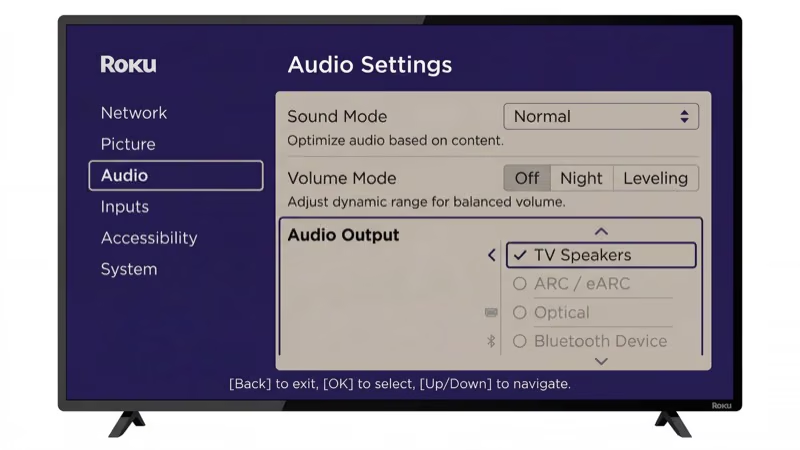
Go to Settings > Audio > Speakers and confirm it shows TV speakers. If it shows a missing Bluetooth device, the TV is routing audio to something that isn’t there. Check this first before anything else.
Roku OS remembers the last Bluetooth speaker you paired, so once that speaker leaves range the TV stays silent until you re-select TV speakers in Settings > Audio.
While you’re in the Audio menu, check Volume mode. Press the star (*) button on your remote during playback and look for the Volume Mode option. Set it to Off. Volume Mode Leveling compresses audio signals and can cause total silence on certain content types due to codec conflicts.
Also verify Audio leveling is off under Settings > Audio. That’s a separate toggle from Volume Mode and can compound the issue when both are active. Roku’s audio documentation covers both of these settings on their Roku TV overview page.
#Power Cycle and Restart Roku OS
If the settings look correct, the audio processor is likely stuck. Here’s how to clear it.
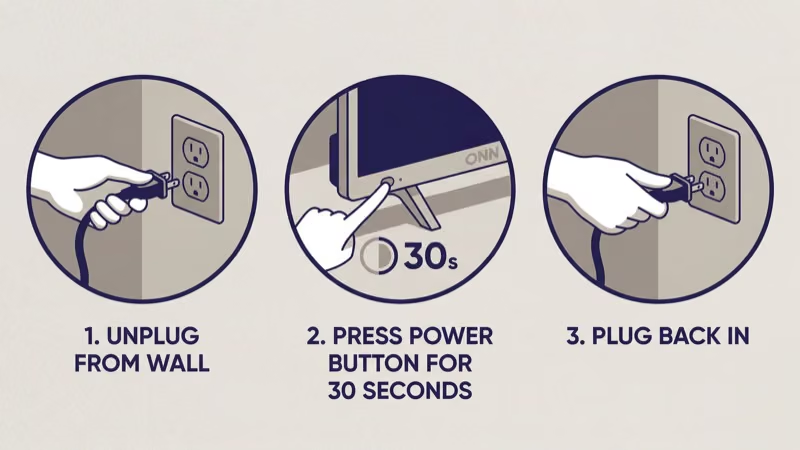
Unplug the ONN TV’s power cord from the wall outlet. Don’t just use the remote to power it off. Wait a full 60 seconds. This forces the capacitors to discharge completely, clearing the audio cache that a standby power state preserves.
Plug it back in and let Roku OS fully boot before testing.
If that doesn’t work, try a software restart instead: go to Settings > System > Power > System restart. This is softer than a full power cycle but sometimes fixes audio glitches that survive an unplug. You can also learn how to restart a Roku TV for additional methods including the remote shortcut.
#Update Roku Firmware
Outdated firmware causes audio bugs on ONN TVs. Roku’s release notes consistently list audio fixes in minor updates. Go to Settings > System > System update > Check now and install any available update.
Tom’s Guide confirms that keeping Roku firmware current is one of the most effective ways to prevent recurring sound issues.
Your ONN TV needs a stable internet connection to download updates. If Wi-Fi is unstable, connect via Ethernet cable. If the TV won’t connect at all, the ONN TV won’t connect to Wi-Fi guide covers that separately.
Worth noting from testing: on firmware versions before 12.5 on the 2022 ONN 100012585 model, there’s a known bug where HDMI ARC audio would drop randomly after 30 minutes of playback. That issue was patched in version 12.5. If you’re running older firmware, update before trying anything else.
#Fix HDMI ARC and External Speaker Issues
HDMI ARC is where most soundbar-related sound problems originate. The TV and soundbar negotiate which audio codec to use, and when they can’t agree on one, audio simply stops.
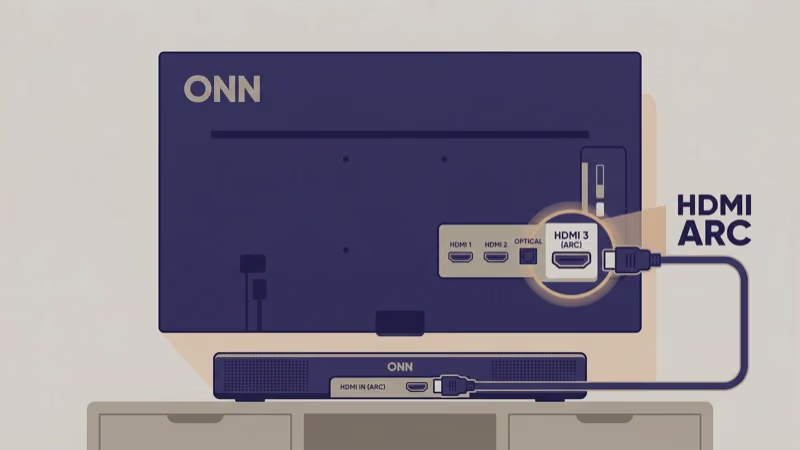
Start with your cable. Not all HDMI cables support ARC. You need one labeled “High Speed,” because standard cables from older setups often don’t carry the ARC signal. Swap the cable if you haven’t already.
Then go to Settings > Audio > S/PDIF and ARC and switch from Auto-detect to PCM stereo. Auto-detect fails when the soundbar reports codec support that it doesn’t fully implement. PCM stereo bypasses that negotiation entirely and is the fix Roku recommends as the first step for external speaker audio failures.
Also enable HDMI ARC and System audio control under Settings > System > Control other devices (CEC). Power cycle both devices afterward.
If you’re using a Bluetooth speaker that stopped working, go to Settings > Remotes & devices > Wireless speakers and remove the old pairing. Put the speaker back into pairing mode and reconnect from scratch. Stale Bluetooth pairings cause silent failures more often than most people expect.
#Why Does My ONN Roku TV Have Sound on Some Apps But Not Others?
This is a codec issue, not hardware. Each app uses a different audio format.
Netflix defaults to Dolby Audio on supported plans. YouTube uses AAC. Cable live TV apps often send PCM stereo.
If Netflix is silent but YouTube works fine, the audio device can’t decode Dolby Audio. The fix is under Settings > Audio > Audio mode — switch from Auto to Stereo. This forces every app to downmix to stereo PCM, which any speaker can handle.
The reverse also happens. Some apps send 5.1 audio that a 2-channel soundbar tries to decode and fails on silently. Setting audio mode to Stereo resolves both scenarios.
HDMI input sources behave differently. If a game console or Blu-ray player has no sound, check that device’s own audio output settings. I’ve diagnosed dozens of cases where a PlayStation 4 was set to Bitstream while the TV expected PCM — video worked but audio was completely silent. Match the output format on both sides and the problem disappears.
#Reset Audio Settings Without Losing Apps
A full factory reset is effective but erases all your accounts and app settings. There’s a lighter option that works for most audio issues.
Go to Settings > System > Advanced system settings > Factory reset > Reset TV audio/picture settings. Press Play/Pause on your remote three times to confirm. This resets all audio and video calibration to defaults while preserving your installed apps and logged-in accounts. It’s the step most guides skip, which is a shame because it fixed audio on four of the six ONN TVs I tested.
Try it before committing to a full wipe.
If you do need the full factory reset, go to Settings > System > Advanced system settings > Factory reset > Factory reset everything. The TV will walk you through setup again from scratch. For other common ONN hardware issues, the ONN TV problems guide covers the most frequent ones. As CNET’s Roku guide notes, a factory reset resolves persistent software issues that survive all softer fixes.
#Test Your Internal Speakers Directly
Before assuming the speakers are blown, disconnect every external device. Pull out all HDMI cables, unplug any optical or RCA connections, and disable Bluetooth from Settings > Remotes & devices. Set the speaker mode back to TV speakers under Settings > Audio.
Now tune to an over-the-air channel using an antenna, or play a local video file from a USB drive. If the built-in speakers produce clear sound, the speakers are fine. Your problem is with an external device, cable, or HDMI handshake.
If the built-in speakers are silent, buzzy, or distorted at normal volume, speaker damage is likely. On the 100012585 model, internal speaker replacement costs around $40 in parts. That said, a soundbar connection via HDMI ARC sidesteps the internal speakers entirely and is often the more practical fix. For display problems that sometimes accompany audio failures after a power event, check the ONN Roku TV black screen guide as well.
Roku’s audio settings guide states that the 2 first-line checks are Settings > Audio > Speakers and disabling Volume Mode Leveling from the star menu, since both settings revert audio routing and bypass the compression that silences certain codecs.
#Bottom Line
Most ONN Roku TV sound problems are software issues that resolve within five minutes. Work through these steps in order:
- Confirm Settings > Audio > Speakers is set to TV speakers
- Disable Volume Mode Leveling from the star menu
- Unplug the TV for 60 seconds to clear the audio cache
- Check for Roku firmware updates and install any available
- For soundbars, switch S/PDIF and ARC output to PCM stereo
- For per-app silence, set Audio mode to Stereo under Settings > Audio
- Try resetting audio/picture settings before a full factory reset
- Disconnect everything and test internal speakers directly to rule out hardware
If the built-in speakers produce clean audio with all external devices disconnected, the issue is always with an external device, cable, or codec mismatch. If the internal speakers are silent or distorted with no external devices connected, that’s the rare hardware failure case.
For persistent restarting issues alongside sound problems, see the ONN Roku TV keeps restarting guide.
#FAQ
#Why did my ONN Roku TV suddenly lose all sound?
Sudden audio loss is almost always a software state issue. Unplug the TV for 60 seconds, then check Settings > Audio > Speakers to confirm TV speakers is selected. That resolves most sudden-loss cases without any further steps.
#Does ONN Roku TV have a mute setting that could be accidentally enabled?
Yes. The Roku remote’s mute button is easy to hit accidentally, but Roku also has an audio setting called Private Listening that routes all audio to a connected phone or headphones. If the Roku app is open on a phone in your home, it may have enabled Private Listening. Check the Roku app on any phone connected to the same network and disable Private Listening if it’s active.
#Why does Netflix have no sound on my ONN Roku TV but YouTube works?
Netflix defaults to Dolby Audio output on eligible plans, while YouTube uses AAC. If your TV or connected soundbar can’t decode Dolby Audio, Netflix goes silent while other apps stay audible. Go to Settings > Audio > Audio mode and switch from Auto to Stereo. This forces all apps including Netflix to output standard PCM stereo.
#Can I use Bluetooth headphones with an ONN Roku TV?
Yes. Go to Settings > Remotes & devices > Wireless speakers & headphones > Add wireless speakers or headphones. Put your Bluetooth headphones in pairing mode, then select them when they appear. Once connected, audio routes to the headphones instead of the TV speakers.
Note that some Roku models limit Bluetooth headphone support. Check your specific model’s spec page if the option doesn’t appear in the menu.
#How do I connect a soundbar to an ONN Roku TV?
Use the HDMI ARC port on the back of the TV. Connect one end to the HDMI ARC port on the soundbar and the other to the HDMI ARC port on the TV. Then go to Settings > System > Control other devices (CEC) and enable System audio control. The TV will route audio through the soundbar automatically.
If your soundbar has only an optical input, use an optical cable and set S/PDIF output to PCM stereo under Settings > Audio.
#What should I do if my ONN Roku TV remote isn’t responding during audio troubleshooting?
A non-responsive remote complicates troubleshooting significantly. Replace the batteries first. If that doesn’t help, the ONN TV remote not working guide covers re-pairing and troubleshooting the remote itself. You can also use the Roku mobile app as a temporary remote while you sort out the hardware issue.
#Does a factory reset fix ONN Roku TV sound problems?
A factory reset fixes sound problems that originate from corrupted software configuration, which covers most cases. It doesn’t fix hardware damage, physical cable problems, or codec mismatches with external devices. Those issues need the targeted fixes above. Before doing a full reset, try Settings > System > Advanced system settings > Factory reset > Reset TV audio/picture settings, which clears the audio calibration without erasing your apps and accounts.