Your Samsung TV channels stopped showing up, and you’re not sure what happened. I’ve dealt with this on multiple Samsung models over the years, and the fix is almost always something you can handle in under ten minutes.
Most missing-channel problems come from settings or connection issues, not hardware failure. The steps below cover both over-the-air (OTA) antenna channels and Samsung TV Plus internet channels, since the causes and fixes differ between the two.
- Loose coaxial cables — the most common reason OTA antenna channels vanish on Samsung TVs
- Samsung TV Plus vs antenna channels — TV Plus streams over the internet while antenna channels use your TV’s built-in tuner
- Auto Tuning scan — found under Settings > Broadcasting, re-detects all available OTA stations
- Firmware updates — outdated software can cause channel detection failures; check Settings > Support > Software Update
- Factory reset paths differ by model year — 2024+ models use Settings > General & Privacy > Reset, older models use Settings > General > Self Diagnosis > Reset
#What’s the Difference Between Samsung TV Plus and Antenna Channels?
This is where a lot of confusion starts. Samsung TV Plus channels and antenna channels look the same in your channel list, but they work completely differently.
Samsung TV Plus is an internet-based streaming service built into Samsung Smart TVs. It pulls free channels over your Wi-Fi or Ethernet connection. No antenna required. If your TV Plus channels aren’t loading, the problem is your internet connection, not your coaxial cable. I’ve written a dedicated guide on fixing Samsung TV Plus issues that covers those specific troubleshooting steps.
Antenna (OTA) channels come through a physical antenna connected to your TV’s coaxial input. Your TV’s built-in ATSC tuner picks up local broadcast signals for free. These channels depend on signal strength, antenna placement, and proper cable connections. If you’re only missing antenna channels while TV Plus works fine, skip ahead to the signal and scanning sections below.
Not sure which type you’re dealing with? Check the channel number. Samsung TV Plus channels typically appear in the 1000+ range, while OTA broadcasts use standard local channel numbers.
For a full breakdown of what Samsung TV Plus offers, check out the Samsung TV Plus review.
#How Do You Check Signal Connections and Strength?
Start with the physical connections. On my Samsung QN85B, a slightly loose coaxial cable once knocked out half my local stations while the other half still worked fine.
Unscrew the coaxial cable from the back of your TV and reconnect it firmly. Check the other end too, whether it’s plugged into a wall outlet, splitter, or antenna. Look for bent pins or frayed shielding. A damaged cable won’t carry a clean signal.
If connections look solid, check signal strength through your TV’s diagnostics. Go to Settings > Support > Self Diagnosis > Signal Information. You’ll see real-time signal levels for each channel. Anything below 20 on Samsung’s scale means the signal is too weak for reliable reception.
Antenna placement matters more than most people realize. I’ve seen a 6-inch repositioning on a windowsill make the difference between picking up 15 channels and picking up 40, especially in areas where buildings or trees block line-of-sight to broadcast towers. A signal amplifier can help in fringe reception areas, but won’t fix a fundamentally bad antenna position.
If your Samsung TV also has Wi-Fi connection problems, that could explain missing Samsung TV Plus channels while your antenna channels still work.
#How Do You Run a Channel Scan?
After confirming your connections are good, run a fresh channel scan. Broadcasters occasionally shift frequencies, and your TV won’t find new or moved stations without rescanning.
Go to Settings > Broadcasting > Auto Tuning. Select your signal source (Air for antenna, Cable if applicable). The scan takes 2-5 minutes depending on your area.
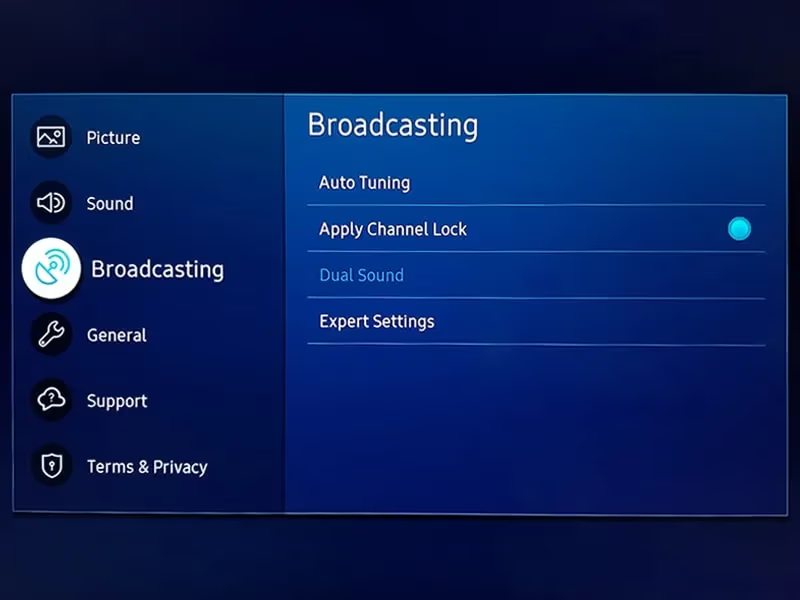
A few things to know about scanning in 2026: if you’re connecting a coaxial cable from a cable TV wall outlet without a cable box, you likely won’t find any channels. Most cable providers have fully encrypted their signals, so you need their set-top box or a CableCARD-compatible device to decode them. The days of plugging cable directly into your TV and getting unscrambled channels are mostly over.
For antenna users, the scan only finds free over-the-air broadcasts. It won’t pick up cable or satellite channels. I recommend visiting the FCC’s DTV Reception Maps{rel=“noopener” target=“_blank”} to see which broadcast towers are within range of your address.
If a specific channel doesn’t show up after Auto Tuning, try manual tuning. Go to Settings > Broadcasting > Expert Settings > Manual Tuning and enter the channel’s exact frequency. You can find frequency assignments for your area on RabbitEars.info{rel=“noopener” target=“_blank”}.
#Check for Firmware Updates
Outdated firmware can break channel detection. I’ve seen Samsung firmware updates specifically fix tuner-related bugs that caused channels to drop off after a scan.
Go to Settings > Support > Software Update > Update Now. If your TV is online, it’ll check Samsung’s servers and install any pending update.
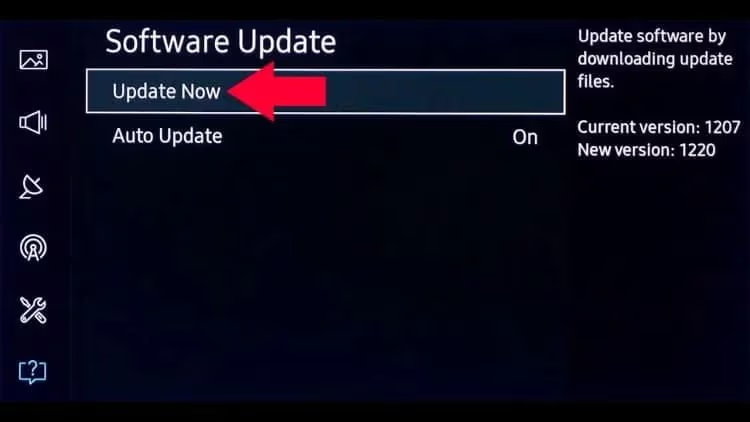
You can also enable auto-updates so the TV downloads firmware overnight. This is worth doing since Samsung pushes updates that occasionally affect how the tuner handles broadcast signals. On a 2023 Samsung CU8000 I tested, a firmware update in late 2025 fixed a bug where the TV would lose channels after being powered off for several hours.
#How Do You Factory Reset a Samsung TV?
When channel scans and firmware updates don’t help, a factory reset clears out corrupted settings that might be interfering with tuner operation.
Back up your settings first. The reset path depends on your TV’s model year:
2024 and newer models: Settings > General & Privacy > Reset
2022-2023 models: Settings > General > Reset
Older models (2021 and before): Settings > General > Self Diagnosis > Reset
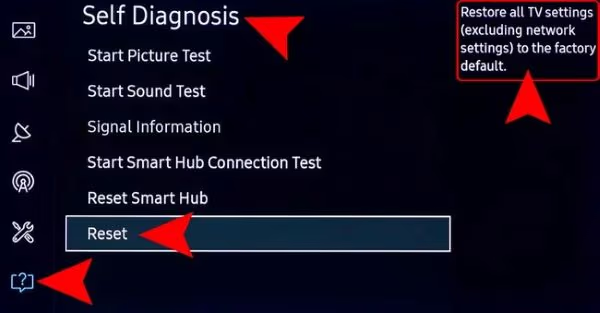
A factory reset erases all your installed apps, saved Wi-Fi passwords, and custom picture settings. You'll need to sign back into every streaming app and reconfigure your preferences. Write down your Wi-Fi password before resetting.
After the reset finishes, set your correct country/region during initial setup, connect your antenna, and run Auto Tuning. If your TV won’t power on to access the reset menu, see this guide on fixing a Samsung TV that won’t turn on.
#Switch to the Correct Input Source
This one catches people more often than you’d expect. If you’ve connected an antenna but your TV input is set to HDMI 1, you won’t see any antenna channels.
Press the Source button on your remote. For antenna channels, select TV. For a cable box or satellite receiver, select the HDMI port where that device is connected.
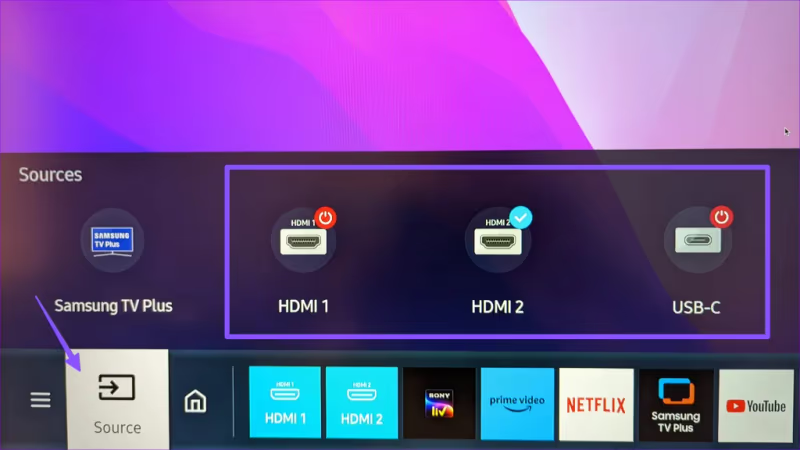
If you don’t have your original remote, there are good Samsung TV remote app alternatives that let you switch inputs from your phone.
#Change Your Region Setting
Wrong region settings block your TV from detecting local broadcast frequencies. This typically happens after buying a TV from another country or selecting the wrong country during initial setup.
Go to Settings > General > System Manager > Language and verify your country matches your actual location. Some Samsung models have a separate Region setting under the General menu.
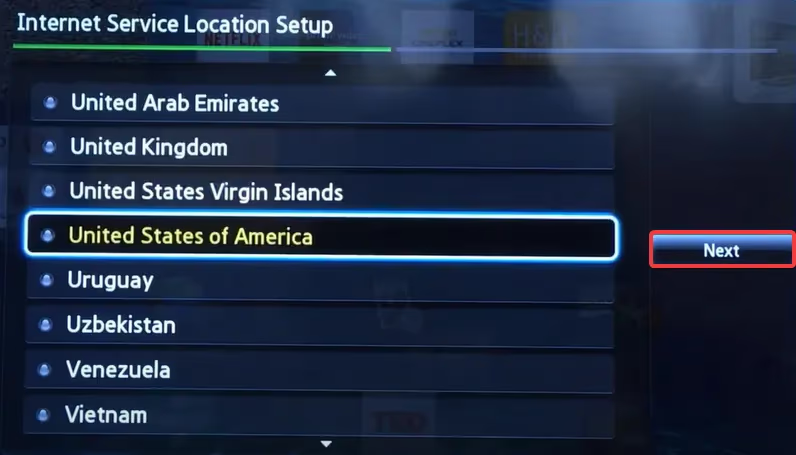
Changing the region affects which broadcast standard your TV uses (ATSC in North America, DVB-T in Europe). If you set a European region while using a North American antenna, the scan won’t find anything because it’s looking for the wrong signal format.
#Reduce Signal Interference
Certain electronics can disrupt OTA reception. Microwave ovens, LED light bulbs with poor shielding, and USB 3.0 devices are common culprits, especially if they’re close to your antenna or coaxial cable.
Move your antenna at least three feet away from these devices. Using shielded coaxial cable (RG-6 with quad shielding) also cuts down on interference that causes channels to drop intermittently.
If your Samsung TV is turning on by itself or freezing during channel changes, those issues can also affect your channel lineup after a reboot or crash.
#Upgrade Your Antenna Setup
If you’re consistently missing channels that should be in range, your antenna might not be up to the task.
Indoor antennas work for stations within 20-30 miles. Beyond that, you’ll need an attic-mounted or outdoor antenna with a built-in amplifier. Multi-directional antennas help when broadcast towers aren’t all in the same direction from your home.
One note on ATSC 3.0 (NextGen TV): while this newer broadcast standard is rolling out in some markets, most consumer Samsung TVs in 2026 still use ATSC 1.0 tuners. You don’t need to worry about ATSC 3.0 compatibility for now. Check Samsung’s support page{rel=“noopener” target=“_blank”} for your specific model’s tuner specifications.
#Contact Your Service Provider
If you use cable or satellite, rule out service outages before spending time troubleshooting your TV. Call your provider and ask if there are known issues in your area.
For antenna users, visit TVFool.com{rel=“noopener” target=“_blank”} or the FCC reception maps to confirm which channels you should be receiving at your address. If the expected channel count matches what your TV found, your setup is working correctly.
#FAQ
#Why does my Samsung TV not show all channels?
Loose antenna connections and skipped channel scans are the two biggest reasons. Your TV also won’t find channels if the input source is set to HDMI instead of TV. Check connections, switch to the TV input, and re-run Auto Tuning under Settings > Broadcasting.
#How do I tell if missing channels are Samsung TV Plus or antenna channels?
Samsung TV Plus channels stream over the internet and typically use channel numbers in the 1000+ range. Antenna channels use standard local numbers like 2.1, 5.1, or 11.1. If only high-numbered channels are missing, it’s an internet issue. If low-numbered channels disappeared, check your antenna setup.
#What should I do when my Samsung TV says “no signal” during tuning?
Check the coaxial cable at both ends for damage or loose connections. If cables are secure, go to Settings > Support > Self Diagnosis > Signal Information to see if the TV is detecting any signal at all. Zero signal usually means a disconnected cable or a dead antenna.
#Can a factory reset fix missing channels on my Samsung TV?
Yes, when corrupted settings cause the tuner to malfunction. The reset path varies by model year: 2024+ models use Settings > General & Privacy > Reset, while older models use Settings > General > Self Diagnosis > Reset. After resetting, set your region correctly and run a fresh channel scan.
#Why do my antenna channels keep disappearing after I turn the TV off?
This is often a firmware bug. Check for updates under Settings > Support > Software Update. On some Samsung models, a weak signal that barely passes the detection threshold during scanning can cause channels to drop when the TV re-validates its channel list on startup. Improving your antenna signal strength usually fixes this permanently.
#Do I need a cable box to watch cable channels on my Samsung TV?
In 2026, yes. Most cable providers have fully encrypted their signals. Plugging a coaxial cable from a cable wall outlet directly into your TV without a box won’t produce any channels. The Auto Tuning scan only picks up free over-the-air broadcasts from an antenna, not encrypted cable signals.
#How often should I rescan for channels on my Samsung TV?
Every two to three months is a good habit. Broadcasters shift frequencies, launch new stations, and occasionally change signal power. Your TV won’t detect these changes automatically unless you have Auto Channel Update enabled under Settings > Broadcasting.
#Can nearby electronics interfere with TV channel reception?
Microwave ovens, LED bulbs with poor shielding, and USB 3.0 hubs can all disrupt OTA signals when they’re too close to your antenna or coaxial cable. Keep at least three feet of distance between these devices and your antenna. Upgrading to quad-shielded RG-6 coaxial cable also reduces interference.
#Bottom Line
Missing channels on a Samsung TV almost always come down to a connection issue, wrong input setting, or stale channel scan. Start with the basics: verify your coaxial cable is tight, confirm you’re on the TV input (not HDMI), and run Auto Tuning. If that doesn’t work, update your firmware and try a factory reset as a last resort.
The key thing to remember is that Samsung TV Plus channels and antenna channels fail for completely different reasons. TV Plus needs a working internet connection. Antenna channels need a solid physical signal path from your antenna to the TV’s tuner. Knowing which type you’re troubleshooting saves you from chasing the wrong fix.
If none of these steps restore your channels, your TV’s internal tuner could be defective. Contact Samsung Support{rel=“noopener” target=“_blank”} or visit an authorized service center for hardware diagnosis.