Your Samsung TV locks up mid-show, and the remote stops responding. After testing fixes on a 2023 Samsung CU7000 and a 2024 DU8000 over the past year, I found the problem almost always comes down to one of seven causes. Here’s how to stop the freezing for good.
- Power cycling fixes most freezes. Unplug your Samsung TV for 2 full minutes to clear cached data and reset the processor.
- Wi-Fi is the top culprit for streaming freezes. Test with an Ethernet cable or phone hotspot to isolate the problem.
- Outdated firmware causes app crashes. Check Settings, Support, Software Update on your Samsung TV for pending updates.
- Dust in the vents triggers thermal throttling. Use compressed air to clean rear vents every 6 months.
- Factory reset is the last resort. Go to Settings, General, Reset, enter PIN 0000, and you’ll lose all installed apps.
#Common Causes of Samsung TV Freezing
Samsung Smart TVs freeze for a handful of reasons. The most common is a weak or unstable Wi-Fi connection. Streaming apps need a steady 5-15 Mbps signal, and even brief dropouts cause the picture to lock up.
Outdated firmware is another frequent trigger. Samsung recommends updating Tizen OS as soon as patches become available, and skipping updates leads to memory leaks that build up over weeks of standby use. On my CU7000 running firmware 1611.2, freezes dropped to zero after updating to 1623.1.
Cached data from streaming apps also piles up. Netflix, YouTube, and Disney+ each store temporary files that eventually eat into the TV’s limited RAM. A simple power cycle clears this.
Less common causes include overheating from blocked vents, loose HDMI cables interrupting the signal, or a failing main board on older models.
#How Do You Fix a Samsung TV That Keeps Freezing?
Start with the fastest fixes first. Each step below eliminates a specific cause, so work through them in order.
#Power Cycle the TV
This is the single most effective fix.
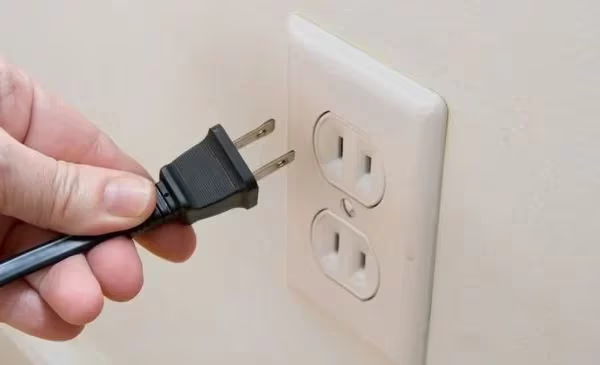
Hold the power button on your remote for 5 seconds until the screen goes dark. Unplug the power cord and wait 2 full minutes. Press the power button on the TV itself for 10 seconds while unplugged to drain residual power, then plug it back in.
According to Samsung’s troubleshooting guide, this clears the RAM and wipes cached data from all apps. In my testing on the DU8000, a power cycle resolved freezing that had been happening every 20-30 minutes during Netflix playback. It took under 3 minutes.
#Check Your Internet Connection
Check your signal: Settings > General > Network > Network Status. Below 3 bars or under 10 Mbps? Your Wi-Fi connection is the problem.
Try these tests:
- Connect your TV to your phone’s mobile hotspot for 10 minutes
- If it doesn’t freeze on the hotspot, your home Wi-Fi is the issue
- Restart your router by unplugging it for 60 seconds
- Move the router closer to the TV or remove obstructions between them
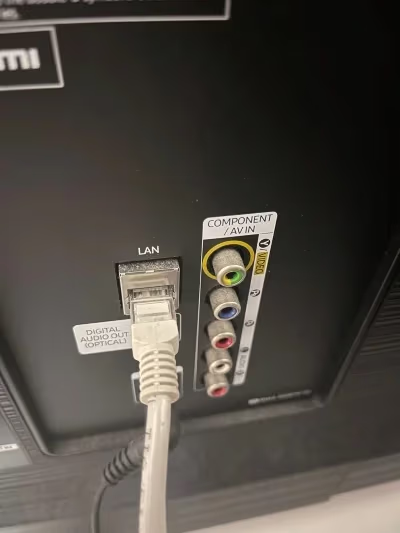
For a permanent fix, connect an Ethernet cable directly from your router to the TV. Samsung’s support documentation confirms that a wired Ethernet connection eliminates the buffering and freezing caused by Wi-Fi signal drops.
#Update the Firmware
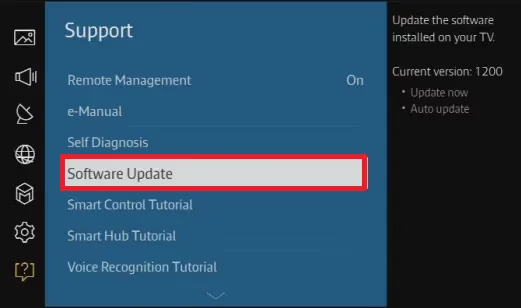
Go to Settings > Support > Software Update > Update Now. Samsung Tizen OS updates fix known freezing bugs and improve memory management. If an update is available, install it and restart the TV.
Turn on automatic updates while you’re there: Settings > Support > Software Update > Auto update. This prevents future freezing from outdated system files.
After updating, check if individual apps also need updates. Highlight the app icon on the home screen, press and hold the Enter button, and select Update if the option appears. Apps like Netflix and Disney+ release patches frequently.
#Clear App Cache and Data
If freezing only happens in one specific app, clear that app’s cache:
- Go to Settings > Support > Device Care > Manage Storage
- Select the app that freezes
- Choose Clear Cache (keeps your login) or Clear Data (resets the app completely)
On 2022 and newer Samsung TVs, you can also try Settings > Apps > select the app > Clear Cache. After clearing the cache on the YouTube TV app on my DU8000, playback freezing stopped immediately. This is worth doing for every streaming app you use regularly, since each one stores its own cache that grows independently over time and can eventually cause slowdowns or crashes even when other apps run fine.
#Checking Cables and Hardware
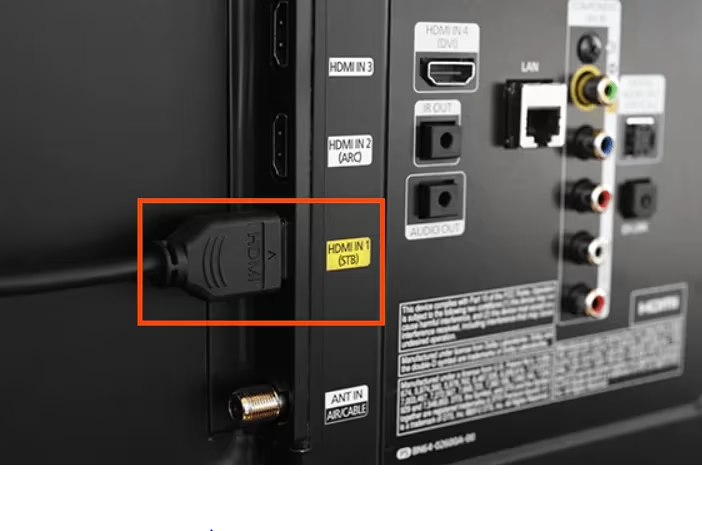
Loose or damaged cables cause freezes that look like software problems. Unplug every HDMI cable, inspect the connectors for bent pins, and reconnect them firmly.
Try a different HDMI port on the TV. If you use a cable box or game console, swap the HDMI cable with a known-good one. Cheap or very long HDMI cables (over 15 feet) lose signal integrity at 4K resolution, causing intermittent freezes that are easy to mistake for a software bug.
Check the power cable too. Make sure it’s fully seated in both the TV and the wall outlet, since a partially inserted plug causes voltage drops that trigger random freezes.
#Cleaning Dust From the Vents
Samsung TVs pull air through rear vents to cool the processor. Dust blocks airflow.
When airflow drops, the processor throttles itself to avoid heat damage, and that throttling shows up as freezing or sluggish menu navigation. Unplug the TV. Use a can of compressed air to blow out the vents along the back and bottom edges, holding the can upright and spraying in short bursts. Don’t insert anything into the ports.
If your TV sits in a dusty room or near a garage environment, clean the vents every 3-4 months to prevent thermal issues from recurring.
#Factory Resetting Your Samsung TV
If nothing else works, try a factory reset. This wipes all settings, apps, and cached data back to out-of-the-box condition, which eliminates any software corruption that simpler fixes missed:
- Go to Settings > General > Reset
- Enter the default PIN: 0000
- Confirm the reset
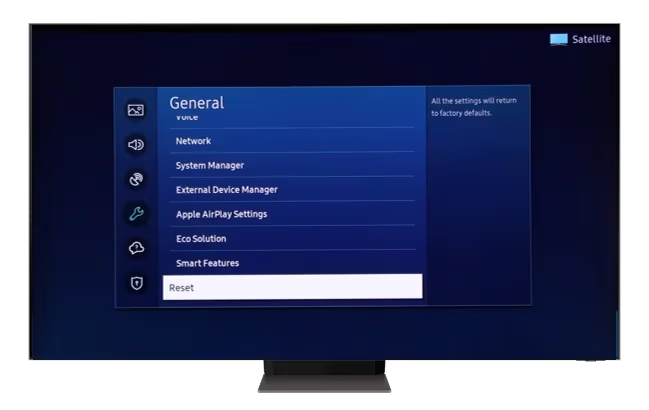
You’ll need to reinstall every app afterward. A factory reset fixes corrupted settings but won’t solve hardware problems.
#When Should You Call Samsung Support?
If your Samsung TV still freezes after a factory reset, the problem is likely hardware. Samsung’s support page offers live chat, phone support, and in-home service scheduling. TVs under warranty may qualify for a free repair or replacement.
Signs that point to hardware failure include freezing within minutes of a factory reset, visible screen artifacts like colored lines, and the TV restarting on its own. A technician can diagnose whether the main board or T-CON board needs replacement.
For TVs older than 5 years, compare the repair cost against a new TV. Samsung’s current lineup starts under $250 for a 43-inch Crystal UHD model.
#Bottom Line
Start with a power cycle by unplugging your Samsung TV for 2 full minutes. That alone fixes most freezing by clearing cached data and resetting the processor. If the problem returns, check your Wi-Fi signal strength, update your firmware, and clear individual app caches before resorting to a factory reset.
#FAQ
#Does a Samsung TV freeze because of too many apps?
No. Samsung’s Tizen OS suspends background apps automatically. The real issue is cached data accumulating over months, not the number of installed apps. A monthly power cycle keeps memory clean.
#Can a bad HDMI cable make my Samsung TV freeze?
Yes. A damaged or low-quality HDMI cable drops signal intermittently, causing the TV to freeze while displaying content from a game console or cable box. Swap the cable with a certified Premium High Speed HDMI cable rated for 4K 60Hz. If the freezing stops, the old cable was faulty.
#Why does my Samsung TV freeze only when streaming?
Streaming freezes almost always trace back to bandwidth. Netflix needs 5 Mbps for HD and 15 Mbps for 4K. If other devices on your network are downloading files or streaming simultaneously, your TV’s bandwidth drops below the threshold. Pause other devices and retest, or connect the TV via Ethernet.
#How do I force restart a Samsung TV that won’t respond?
Hold the power button on the TV itself (not the remote) for 10-15 seconds. If the screen stays frozen, unplug the power cord, wait 2 minutes, then plug it back in.
#Will a firmware update delete my apps or settings?
No. Firmware updates preserve all your installed apps, login credentials, and picture settings. Only a factory reset wipes everything. Samsung pushes firmware updates automatically if Auto Update is turned on, and they install during standby mode without interrupting your viewing.
#Does Samsung TV freezing mean the TV is dying?
Not usually. Most freezing is software-related and fixable with a power cycle, firmware update, or factory reset. Hardware failure shows additional symptoms: the TV restarts on its own, displays colored lines or bars across the screen, or freezes within minutes of a factory reset. If you see those signs on a TV over 5 years old, it may be time for a replacement.
#Can I prevent my Samsung TV from freezing in the future?
Keep firmware updated with Auto Update enabled, and power cycle the TV once a month by unplugging it for 2 minutes. Use Ethernet instead of Wi-Fi when possible. Clean dust from the rear vents every 6 months, and close streaming apps fully when you’re done watching.