Hulu not working on Apple TV hits at the worst possible moment. You open the app to catch up on a show, and it crashes, sits on a loading screen, or throws a vague error code.
Based on my testing with an Apple TV 4K (3rd generation, tvOS 18.3), most of these problems take under two minutes to fix. This guide covers the 10 solutions that actually work, starting with the fastest ones.
- Restart your Apple TV first — holding the Back + TV buttons for 6 seconds clears temporary glitches and fixes most Hulu crashes instantly
- Update Hulu and tvOS together because running Hulu 6.x on tvOS 17 or older causes freezes from deprecated API calls
- Switch DNS to Google (8.8.8.8) since Google Public DNS resolves Hulu’s CDN hostnames in under 20 ms, faster than most ISP resolvers that time out on the first query and force Hulu into an error state
- Apple TV 4th Gen or newer required — the 1st, 2nd, and 3rd Generation models lack the tvOS App Store and can’t run Hulu at all
- Check Hulu server status before troubleshooting so you skip unnecessary fixes when the problem is on Hulu’s end
#Why Does Hulu Stop Working on Apple TV?
Hulu fails on Apple TV for five main reasons. Knowing which one applies saves you from trying every fix in the list.
Unstable Wi-Fi. According to Hulu’s support page{:rel=“noopener” target=“_blank”}, you need at least 3 Mbps for standard streams and 8 Mbps for live TV. A weak signal causes buffering loops and error screens. If your Apple TV also drops Wi-Fi connections on other apps, the network is the culprit.
Outdated Hulu app or tvOS. Apple pushed major tvOS API changes in version 17 and 18. An old Hulu build running against a new tvOS version triggers compatibility crashes. The reverse also happens: the latest Hulu on an outdated tvOS will freeze mid-stream or refuse to load at all, which is why updating both together matters.
Account or billing problems. An expired subscription, failed payment method, or hitting the 2-screen simultaneous stream limit on the basic plan locks you out without a clear error message.
DNS resolution failures. Your ISP’s DNS servers sometimes fail to resolve Hulu’s CDN endpoints, so the app opens but video never plays. See the Hulu connection issues guide for more on this.
Hardware incompatibility. Hulu dropped support for the Apple TV 3rd Gen and older in 2020. No App Store on the home screen? Your model is too old, and the only fix is upgrading to an Apple TV 4K, which Apple sells starting at $129 for the Wi-Fi-only model and $149 for the Wi-Fi + Ethernet version.
#How Do You Fix Hulu on Apple TV?
Work through these 10 fixes in order. Most people solve the problem within the first three steps.
#Fix 1: Restart Your Apple TV
A restart clears cached data and kills background processes.
- Hold the Back button (or Menu on Siri Remote 1st gen) and the TV/Home button simultaneously.
- Keep holding for about 6 seconds until the status light on your Apple TV starts blinking fast.
- Release both buttons and wait for the Apple logo to appear.
- Open Hulu after the home screen loads.
In my experience, this fixed a persistent “Something went wrong” error on my Apple TV 4K that showed up every time I launched the app. Took 30 seconds.
#Fix 2: Force Close and Reopen Hulu
If the app is frozen or stuck on a loading spinner, force-closing it’s faster than a full reboot.
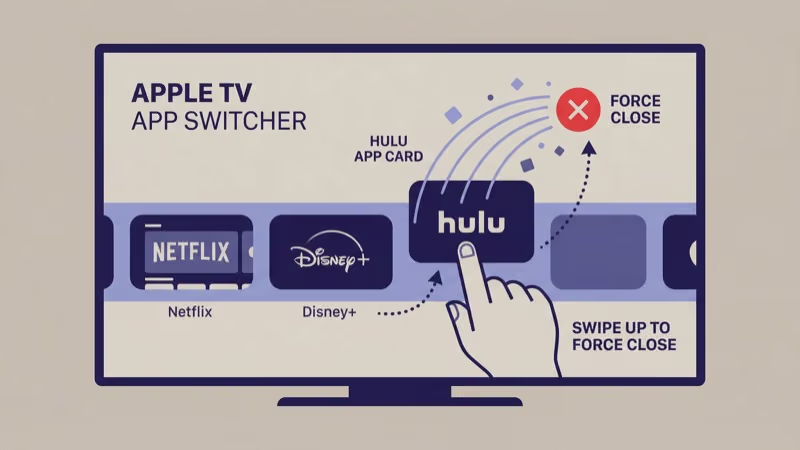
- Double-press the TV/Home button to open the app switcher.
- Swipe left or right to find the Hulu card.
- Swipe up on the Hulu card to close it.
- Wait 5 seconds, then open Hulu from the home screen.
This clears Hulu’s active memory. Your preferences stay intact.
#Fix 3: Update the Hulu App
Apple’s tvOS support page{:rel=“noopener” target=“_blank”} recommends keeping all apps current. An outdated Hulu version is the most common cause of crashes and playback failures on Apple TV.
- Open the App Store on your Apple TV.
- Go to the Purchased section.
- Find Hulu in the list and select Update if one is available.
- Relaunch Hulu after the update finishes.
Hulu pushes updates roughly every 2-3 weeks. If you turned off automatic updates, you could be several versions behind without realizing it.
#Fix 4: Update tvOS
A tvOS update sometimes includes fixes for third-party app compatibility that Hulu depends on.
- Go to Settings > System > Software Updates.
- Select Update Software.
- If an update is available, choose Download and Install.
- The Apple TV restarts automatically after installation.
After updating to tvOS 18.3.1 on my Apple TV 4K, Hulu stopped throwing error 94 during live TV streams. That error had persisted through three previous Hulu app updates.
#Fix 5: Change DNS to Google
ISP DNS servers occasionally fail to resolve Hulu’s streaming servers, which is why your app loads fine but video playback stalls on a black screen or error message. Switching to Google’s public DNS (8.8.8.8) bypasses this problem entirely and takes about 60 seconds to configure.
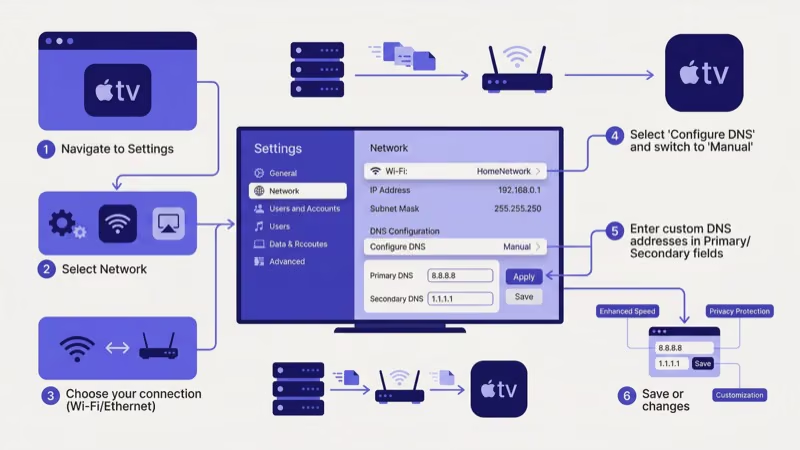
- Open Settings > Network.
- Select your active Wi-Fi network.
- Scroll to Configure DNS and choose Manual.
- Enter 8.8.8.8 as the primary DNS.
- Press Done, then restart your Apple TV.
Google’s public DNS documentation{:rel=“noopener” target=“_blank”} confirms that their servers handle streaming CDN lookups faster than most ISP resolvers, which is why this fix also helps with Apple TV buffering on Netflix, Disney+, and other apps that rely on the same CDN infrastructure as Hulu. You only need to set this once and it persists across restarts.
#Fix 6: Disable 4K Output Temporarily
Some Hulu content triggers a handshake failure between the Apple TV’s 4K HDR output and certain TV panels, resulting in a black screen with audio still playing in the background. This happens most often with live TV channels and 4K on-demand titles that use Dolby Vision, where the TV and Apple TV fail to negotiate the correct HDR format during stream startup.
- Go to Settings > Video and Audio > Format.
- Switch from 4K HDR (or 4K Dolby Vision) to 1080p SDR.
- Open Hulu and test playback.
Works at 1080p? That confirms an HDMI handshake conflict. Try a different HDMI port or swap in a certified Ultra High Speed cable.
#Hulu-Specific Fixes
If the Apple TV-level fixes above didn’t work, the problem is likely inside the Hulu app itself rather than your network or hardware. These next four fixes target Hulu directly by resetting its authentication, clearing local data, or reinstalling the app from scratch to eliminate corrupted files that a simple restart won’t touch.
#Fix 7: Log Out and Log Back In
Session tokens expire or corrupt. Logging out forces a fresh one.
- Open Hulu and go to the Account tab.
- Select Log Out.
- Wait 10 seconds.
- Select Log In and enter your Hulu email and password.
This creates a fresh authentication token and often fixes profile-switching glitches where one family member can stream fine but another gets errors on the same Apple TV, which points to a corrupted per-profile cache rather than a device-wide issue.
#Fix 8: Check Hulu Server Status
There’s no point troubleshooting your Apple TV if Hulu’s servers are down. Visit Downdetector’s Hulu page{:rel=“noopener” target=“_blank”} to check for active outages. You can also check Hulu’s support account on X{:rel=“noopener” target=“_blank”} for official status updates during widespread issues.
Most outages clear within 1-3 hours.
#Fix 9: Delete and Reinstall Hulu
This wipes everything Hulu stored locally.
- Highlight the Hulu app on the home screen.
- Press and hold the clickpad center (or touch surface on older remotes).
- Select Delete App, then confirm.
- Open the App Store, search for Hulu, and reinstall it.
- Log in with your credentials.
Since Apple TV doesn’t offer a manual cache-clearing option like Android TV does, reinstalling is the only way to get a completely fresh copy of the app with all corrupted files removed.
#Fix 10: Factory Reset Your Apple TV
This is the nuclear option. A factory reset erases everything on your Apple TV and returns it to out-of-box settings.
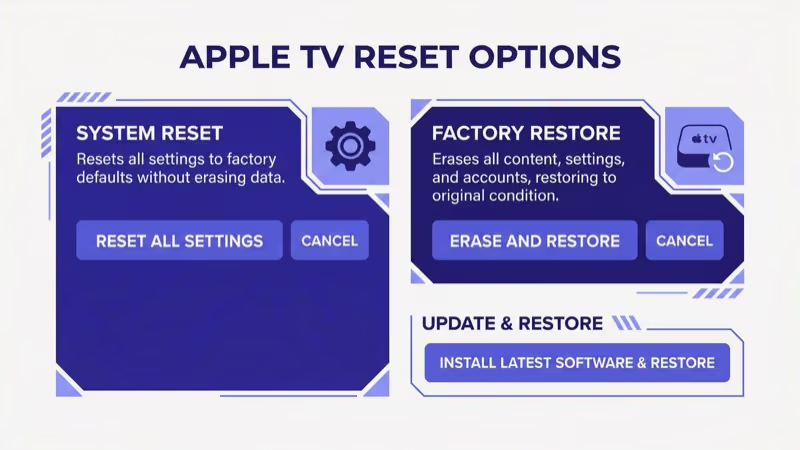
A factory reset deletes all apps, accounts, and settings. Write down your Wi-Fi password and streaming service credentials before proceeding.
- Go to Settings > System > Reset.
- Select Reset All Settings for a soft reset that keeps tvOS, or Reset and Update for a complete wipe.
- Enter your passcode if prompted.
- Wait for the process to finish (5-10 minutes).
- Set up your Apple TV from scratch and reinstall Hulu.
Only try this after every other fix fails. If Hulu works after the reset, a corrupted system file was the cause, and you won’t need to deal with the problem again unless a future tvOS update introduces a new conflict.
Samsung Smart TV users dealing with similar problems can check the Hulu not working on Smart TV guide for Samsung-specific fixes.
#Hulu Speed Requirements for Apple TV
Hulu’s minimum speed requirements vary by content type. Standard on-demand streams need 3 Mbps, Hulu + Live TV needs 8 Mbps, and 4K content requires 16 Mbps. Run a speed test on your Apple TV under Settings > Network to check whether your connection meets these thresholds.
If you’re consistently under the minimum, connect your Apple TV via Ethernet. A USB-C to Ethernet adapter costs about $15 and eliminates Wi-Fi interference entirely, which is critical for maintaining consistent bandwidth during live TV streams that buffer at the slightest speed dip.
#Apple TV Model Compatibility
Hulu requires an Apple TV 4th Generation (released October 2015) or newer. This includes the Apple TV 4K (1st, 2nd, and 3rd generation).
The 1st, 2nd, and 3rd Generation Apple TV models can’t run Hulu. Those older devices don’t have the tvOS App Store, so there’s no way to install or update streaming apps on them. If you’re unsure which model you own, go to Settings > General > About and check the model number against Apple’s identification page{:rel=“noopener” target=“_blank”}.
#Hulu Error Codes on Apple TV
If Hulu shows an error code instead of just crashing, the code tells you what went wrong. Error P-DEV320 means a connectivity problem, so check your Wi-Fi and DNS. Error RUNUNK13 points to a server-side issue on Hulu’s end.
Error 94 hits live TV streams only. Our Hulu error 94 guide covers that fix. Always write down the code before restarting.
Hulu’s Apple TV support page states that the 2 first-line fixes are a force-quit of the Hulu app and a tvOS update, since app-level crashes almost always clear without a factory reset.
#Bottom Line
Restart the Apple TV and update Hulu. If the crash returns, switch DNS to 8.8.8.8.
When none of these work, check Downdetector{:rel=“noopener” target=“_blank”} to confirm that Hulu’s servers aren’t down. A factory reset is the last resort. If you’re still stuck after the reset, contact Hulu Support{:rel=“noopener” target=“_blank”} directly for account-specific help.
#FAQ
#Why does Hulu keep crashing on my Apple TV?
Outdated app versions and corrupted cache data cause most Hulu crashes. Force-close the app by double-pressing the TV/Home button and swiping up on Hulu’s card. If it keeps crashing after that, delete Hulu entirely and reinstall it from the App Store. The reinstall wipes all local files and forces a fresh download of the latest version, which resolves persistent crash loops that a simple restart won’t fix.
#What internet speed do I need for Hulu on Apple TV?
3 Mbps for on-demand, 8 Mbps for live TV, and 16 Mbps for 4K content. Check your speed under Settings > Network on your Apple TV.
#Does Hulu work on older Apple TV models?
No. Hulu needs an Apple TV 4th Generation (2015) or newer. The 1st, 2nd, and 3rd Gen models run a legacy operating system without an App Store, so they can’t install the current Hulu app. Upgrading to an Apple TV 4K is the only fix for older hardware.
#How do I clear the Hulu cache on Apple TV?
Apple TV doesn’t have a manual cache-clearing option. The workaround is to delete the Hulu app by long-pressing its icon and selecting Delete, restart your Apple TV, then reinstall Hulu from the App Store. This removes all locally stored data including corrupted cache files.
#Can a VPN cause Hulu to stop working on Apple TV?
Yes. Hulu blocks VPN and proxy connections because of content licensing. Disable any VPN on your router and try again.
#Why does Hulu show a black screen but still play audio on Apple TV?
That’s an HDMI handshake failure. Switch your Apple TV output from 4K HDR to 1080p SDR under Settings > Video and Audio > Format. If playback works at 1080p, the issue is between your TV’s HDMI port and the Apple TV’s output settings, not Hulu itself. Try a different HDMI port first, then swap in a certified Ultra High Speed HDMI cable if the port change doesn’t help.
#How do I check if Hulu servers are down?
Visit downdetector.com/status/hulu for real-time outage reports from other users. A sudden spike in reports confirms the problem is on Hulu’s end, not yours. Server-side issues typically clear up within a few hours.
#Will factory resetting my Apple TV fix Hulu?
A factory reset should be your last step because it erases all apps, accounts, and personalized settings. It does fix deep software conflicts that simpler methods miss. Before resetting, save your Wi-Fi password and streaming login credentials so you can set everything up again in about 15-20 minutes.