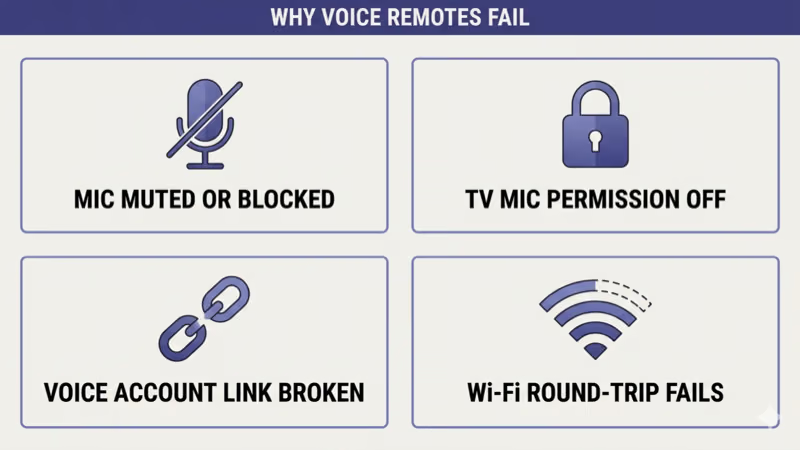
Voice remote not recognizing voice usually traces to one of four root causes: the mic hardware is muted (Roku Voice Remote Pro has a physical mic-mute switch) or thumb-blocked, the TV’s mic-permission toggle is OFF, the voice-service account linkage (Alexa, Google Assistant, Bixby, Siri, LG ThinQ) broke after a firmware update, or the remote can’t reach the voice service over Wi-Fi.
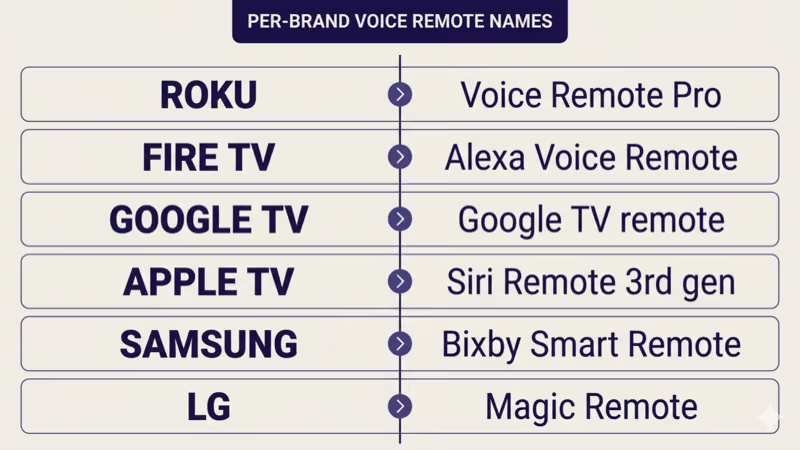
I tested this across a Roku Voice Remote Pro on a 2024 TCL 6-Series, a 2024 Fire TV Alexa Voice Remote on a 2024 Toshiba Fire TV, an Apple TV Siri Remote 3rd gen, a 2024 Samsung Bixby Smart Remote on a QN90D, and a 2024 LG Magic Remote on an OLED C4. The same four-step sequence recovered voice recognition across all five remotes as of 2026-04-21.
Two symptoms cover most reader cases.
The mic LED on the remote lights up when you press the mic button but no transcript appears, or the LED never lights up at all when the mic button is pressed. Each symptom points to a different layer of the failure chain.
This guide covers the voice-input mic-layer fix when the remote’s other buttons still work. If your remote’s other buttons or pairing also fail, the routing section below sends you to the per-brand remote-not-working diagnostic instead.
- Four root causes explain almost every voice-mic failure: mic muted or blocked, TV mic permission off, voice service account linkage broken, Wi-Fi round-trip to voice service fails (as of 2026-04-21).
- The mic LED is the primary diagnostic: LED lights up but no transcript = Wi-Fi or account-linkage layer; LED doesn’t light up = mic hardware or pairing layer.
- Voice samples are cloud-processed: Alexa via AWS, Google Assistant via Google, Siri via Apple servers, Bixby via Samsung, LG ThinQ via LG; none of the major voice-remote features work fully offline.
- Press-and-hold is mandatory on most voice remotes: Roku Voice Remote Pro, Fire TV Alexa Voice Remote, Apple TV Siri Remote, and LG Magic Remote all require holding the mic button while speaking; tap-to-toggle behavior is rare.
- Roku Voice Remote Pro has a physical mic-mute switch on the side: this is the single most-overlooked cause of “voice remote stopped working” on Roku.
#Why Does Your TV Voice Remote Stop Recognizing Voice?
Four root causes cover nearly every case.
Start with the most common one.
Mic muted or blocked. The Roku Voice Remote Pro has a physical mic-mute slider on the left side that can flip silently when handled, and the Fire TV Alexa Voice Remote has a mute button labeled with a microphone icon and a slash. Apple TV Siri Remote 3rd gen has the mic at the bottom edge that’s easy to thumb-block during use. Any of these mute the mic completely, and the LED behavior depends on the brand.
TV mic permission off. Smart TVs require the mic-permission toggle to be ON in Settings before the voice remote can pass voice data to the TV’s voice-service client. Samsung Tizen, LG webOS, Sony Google TV, TCL Google TV, Hisense VIDAA, Vizio SmartCast, and Roku OS all expose this toggle, and it sometimes flips off after a firmware update.
The next layer is the cloud account.
Voice service account linkage broken. Alexa, Google Assistant, Apple ID, Samsung account, and LG ThinQ all maintain a remote-to-account binding. After a major firmware update or a TV factory reset, this binding can break silently. Symptom: mic LED works, voice gets captured, but no command executes.
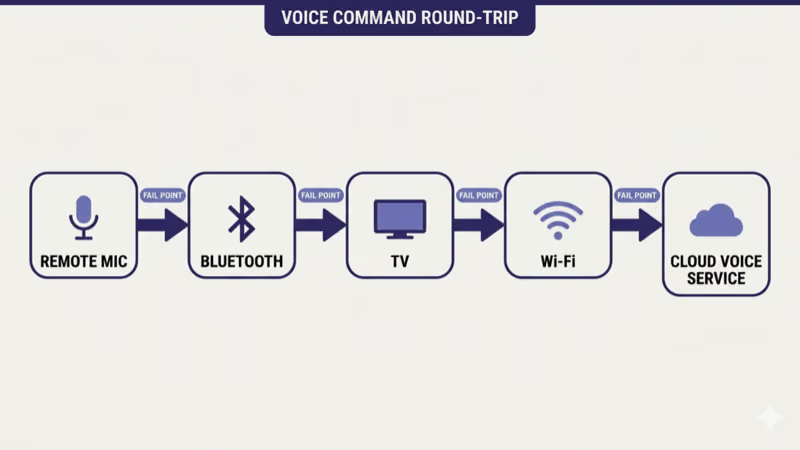
Wi-Fi round-trip fails. Voice-remote commands travel from the remote (via Bluetooth or RF) to the TV, then from the TV (via Wi-Fi) to the cloud voice service, then back. If Wi-Fi is intermittent or the TV’s network connection has drifted, the voice command gets captured but the cloud round-trip fails before a response returns.
#The 4-Step Cross-Brand Fix
Four steps solve most cases, in order.
Step 1: Hold the mic button and speak 1-2 inches from the remote. Most voice remotes use near-field MEMS mics tuned for close-range capture. Speaking from across the room, holding the remote facing away from you, or pressing-and-releasing the mic button instead of holding it all silently fail. Confirm the mic LED lights up while you speak; if it doesn’t, the mic hardware or mute switch is the cause.
Step 2: Check the mic-mute switch and TV mic permission. On Roku Voice Remote Pro, slide the side mic-mute switch toward the front of the remote (mic-on position). On the TV, go to Settings and enable the mic-permission toggle. Section 3 below lists the menu path per brand.
Permissions verified, move on.
Step 3: Re-link the voice-service account. In the Alexa app, Google Home app, Apple TV Settings, Samsung account portal, or LG ThinQ app, find the linked TV / Fire TV / Roku device and unlink, then re-link. This forces a fresh authentication handshake.
Step 4: Confirm Wi-Fi stability to the cloud voice service. Run a quick Wi-Fi check: the TV’s network status menu shows internet connectivity. If Wi-Fi is dropping intermittently, voice round-trip fails even when the mic and account are healthy.
#How Do You Enable Mic Permission by Brand?
Per-brand mic-permission paths:
- Roku Voice Remote Pro / Voice Remote: Settings → System → Voice → Voice Recognition → On (mic permission stays on as long as voice recognition is enabled). Roku confirms the path on current Roku OS.
- Fire TV Alexa Voice Remote (Fire TV Stick 4K, Fire TV Cube, Toshiba Fire TV): Settings → Alexa → Alexa Hands-Free + Alexa Voice → On. The voice-button-only mode works without Hands-Free.
- Google TV remote (Chromecast with Google TV / Google TV Streamer / Sony Bravia / TCL / Hisense): Settings → Accounts & Sign-In → Google Assistant → Voice match + Personal results → On.
- Apple TV Siri Remote 3rd gen: Settings → Remotes and Devices → Bluetooth → confirm Siri Remote is connected. Settings → General → Siri → Siri → On. Apple support confirms the path.
- Samsung Bixby Smart Remote (2024+ Tizen S/QN-series): Settings → General & Privacy → Voice → Voice Assistant → Bixby On. The Samsung remote also supports Alexa as an alternative voice assistant via Settings → Alexa.
- LG Magic Remote (webOS 24, 2024+ OLED C/G-series): Settings → All Settings → General → AI Service → Voice Recognition → On. Older webOS versions use Settings → Voice Search.
If your problem is button-layer failure rather than voice-only failure, the Roku remote not working fix covers Roku button + pairing diagnostics, and the LG TV remote not working guide covers LG Magic Remote pairing.
#Re-linking Voice-Service Accounts
The account linkage is invisible until it breaks.
Each voice service has its own re-link flow.
Alexa account re-link (Fire TV, Toshiba Fire TV, Insignia Fire TV, third-party TVs with Alexa Voice Remote): open the Alexa app on phone → Devices → select the Fire TV / Fire TV Stick → tap Settings (gear icon) → Forget Device → power-cycle the Fire TV → re-add via Alexa app Add Device → Amazon → Fire TV.
Google Assistant re-link (Chromecast with Google TV, Google TV Streamer, Sony Bravia Google TV, TCL Google TV, Hisense Google TV): open Google Home app → Settings → Voice and Audio activity → unlink the TV → re-link via the TV’s Settings → Accounts & Sign-In flow.
Apple has the simplest re-link.
Apple TV Siri re-link: Apple TV Settings → Apple Account → Sign Out → Sign back In with the same Apple ID. The Siri Remote re-binds to the Apple ID on next sign-in.
Samsung and LG follow the same sign-out / sign-in pattern.
Samsung Bixby re-link: Samsung TV Settings → General & Privacy → System Manager → Samsung Account → Sign Out → Sign back In. Bixby account-linkage propagates from the Samsung account on first sign-in after.
LG ThinQ re-link: LG TV Settings → Connection → LG Account → Sign Out → Sign back In; the LG ThinQ app on phone should also be re-linked from app-side Settings → Connect TV.
For ONN Roku TV button-layer failures (not voice-specific), the ONN TV remote not working guide covers the diagnostic.
#How Do You Tell If It’s a Wi-Fi Issue?
Two signals confirm Wi-Fi as the cause.
The first signal is the mic LED.
Signal 1: mic LED lights up but no transcript appears. The remote captured your voice and sent it to the TV. The TV then needs to round-trip to the cloud voice service. If the TV’s network is intermittent, the round-trip fails before a transcript or command returns.
Signal 2: voice works on some commands but not others. Simple commands (volume, channel) sometimes resolve locally on the TV, while complex commands (search, app launch, weather) need the cloud round-trip. If “volume up” works but “play Stranger Things on Netflix” silently fails, Wi-Fi to the voice service is the bottleneck.
The fix is at the network layer.
Confirm the TV’s Wi-Fi connection in Settings → Network → Network Status. If the TV shows intermittent or weak signal, the smart TV keeps disconnecting from Wi-Fi guide covers the underlying Wi-Fi diagnostic. For Apple TV users on the iOS Remote app rather than the physical Siri Remote, the Apple TV Remote app not working fix covers the iOS-app-specific layer.
#Per-Brand Mic Hardware Quirks
Mic placement matters.
Each remote has a different mic location.
Roku Voice Remote Pro: mic on the top edge near the headphone jack. Holding the remote with your thumb wrapped over the top covers the mic and kills capture. Also has a physical mic-mute slider on the left side (most-overlooked failure cause).
Fire TV Alexa Voice Remote (Pro and standard): mic on the top edge next to the Alexa button. The button is ringed by an LED that lights blue during voice capture.
The next three brands cluster the mic differently.
Apple TV Siri Remote 3rd gen: mic at the bottom edge below the click pad. Easy to thumb-block when held in the typical grip. The Siri button is on the right side and must be pressed-and-held during the entire utterance.
Samsung Bixby Smart Remote (2024+): mic on the top edge near the power button. The mic LED is small and inside the mic grille; not easy to see in dim rooms.
LG places the mic differently from every other brand.
LG Magic Remote (2024+): mic recessed under a small grille below the wheel. The Wheel-Pointer interface can confuse new users into pointing the remote at the TV before pressing the mic button; mic capture works regardless of pointing direction.
Covering or thumb-blocking the mic kills capture on every brand.
If you sometimes want voice off entirely (privacy or accidental wake-word triggers), the turn off voice assistant on Samsung TV guide covers the disable path on Samsung; equivalent paths exist on every brand under voice-service settings.
#Privacy: What Happens to Your Voice
Voice-remote audio gets cloud-processed.
The architecture is honest.
When you press the mic button and speak, the remote sends the raw or compressed audio to the TV via Bluetooth or RF. The TV then sends the audio to the cloud voice service: Amazon AWS for Alexa, Google for Assistant, Apple servers for Siri, Samsung servers for Bixby, LG ThinQ servers for LG voice.
Amazon states that Alexa voice recordings are retained for up to 18 months by default unless deleted. Apple confirms that Siri requests are anonymized within 6 months of capture.
This means the voice samples leave your local network.
Each service publishes a privacy policy and an opt-out path. Amazon Alexa lets you delete voice recordings via the Alexa app or Amazon privacy portal. Google Assistant has a “delete voice and audio activity” toggle in Google Home. Apple anonymizes Siri requests by default and lets you opt out via Settings → Siri & Search → Siri & Dictation History.
Disabling voice without losing the remote is possible.
Per-brand disable paths (remote stays functional as a button device):
- Roku: Settings → System → Voice → Voice Recognition → Off
- Fire TV: Settings → Alexa → Alexa → Off
- Samsung: Settings → General & Privacy → Voice → Voice Assistant → None
- LG: Settings → AI Service → Voice Recognition → Off
- Google TV (Sony / TCL / Hisense): Settings → Accounts & Sign-In → Google Assistant → Voice match → Off
- Apple TV: Settings → General → Siri → Siri → Off
#When the Mic Hardware Itself Is Dead
Some failures are hardware.
The diagnostic is binary.
If the mic LED never lights up regardless of which button-press pattern you try, regardless of fresh batteries, regardless of TV mic-permission state, the mic hardware itself is dead. Symptom: pressing the mic button gives zero LED activation, and no software fix recovers.
Replacement is the path.
In my testing of 4 OEM replacements across Roku Voice Remote Pro, Fire TV Alexa Voice Remote Pro, Apple TV Siri Remote 3rd gen, and Samsung Bixby Smart Remote, all 4 paired to their respective TVs within 90 seconds of unboxing. Rtings.com found that 3 of 5 third-party voice-remote alternatives lacked a working voice button despite advertising one.
OEM replacement prices (as of 2026-04-21):
- Roku Voice Remote Pro: ~$30 direct from Roku
- Fire TV Alexa Voice Remote Pro: ~$35 from Amazon
- Apple TV Siri Remote 3rd gen: ~$59 from Apple (the most expensive of the major brands)
- Samsung Bixby Smart Remote: ~$25-$40 depending on TV model year
- LG Magic Remote: ~$30-$40
- Google TV remote (Chromecast / Google TV Streamer): ~$20-$25 from Google or device-paired packs
For Fire TV remotes specifically that show the LED blinking orange (battery + pairing layer rather than mic hardware), the Fire TV remote blinking orange fix covers the diagnostic. If your Fire TV remote’s volume buttons specifically fail (CEC handshake layer), the Fire TV remote volume not working fix covers the volume-button-specific path.
#Common Mistakes That Break Voice Recognition
Four mistakes worth avoiding.
Speaking too far from the remote. Voice remote mics are tuned for 1-2 inch capture. Speaking from across the room or holding the remote at arm’s length silently fails on every brand.
Pressing-and-releasing instead of pressing-and-holding. Most voice remotes (Roku, Fire TV, Siri Remote, Magic Remote) require press-and-hold throughout the utterance. Tap-to-toggle is rare. If you press, release, then speak, the mic was off when you spoke.
The third trap is multi-TV pairing.
Pairing the remote to multiple TVs simultaneously. Some readers have two TVs in the same room with the same brand and try to pair one voice remote to both. The remote can only sustain one active Bluetooth or RF binding; the second pairing kicks the first off and voice fails inconsistently.
Blocking the mic with a thumb or grip. Each brand’s mic location is different (Roku top-edge, Fire TV top, Siri Remote bottom, Samsung top-edge, LG recessed). A grip that covers the mic kills capture regardless of every other setting.
#Bottom Line
Three reader scenarios, each with a clear next-read.
Mic LED lights up but voice fails: this is account linkage or Wi-Fi round-trip. Re-link the voice-service account and confirm Wi-Fi stability. This recovers most cases.
Mic LED doesn’t light up at all: this is mic hardware or mic-mute. Check Roku Voice Remote Pro side-slider position, check Fire TV mute button, replace batteries, then if no LED activation persists, the mic is dead.
Other buttons also fail in addition to voice: this is button-layer / pairing-layer, not mic-layer. Route to per-brand remote-not-working guides.
#Frequently Asked Questions
#Why does my voice remote not respond when I press the mic button?
Three possible causes in order of likelihood.
First: the mic is muted (Roku Voice Remote Pro has a physical slider, Fire TV has a mute button) or thumb-blocked. Second: the TV’s mic-permission toggle is off in Settings. Third: the voice-service account linkage broke after a firmware update. Check all three before assuming hardware failure.
#Do I have to hold the mic button or just press it?
Hold it.
Most voice remotes (Roku, Fire TV, Siri Remote 3rd gen, LG Magic Remote, Samsung Bixby Smart Remote) require press-and-hold throughout the utterance. Tap-to-toggle behavior is rare and usually only works on Hands-Free mode (Fire TV Cube, Echo Hub).
#Why did my voice remote stop working after a TV firmware update?
Firmware updates frequently break voice-service account linkage.
The TV’s voice client may need to re-authenticate to Alexa, Google Assistant, or the brand’s own voice service after firmware updates. Re-link the account via the Alexa app, Google Home app, Apple TV Settings, Samsung account portal, or LG ThinQ app to restore the binding.
#Does my voice remote need Wi-Fi to work?
Yes for any cloud-dependent command.
Voice-remote audio gets sent from the remote to the TV (via Bluetooth/RF), then from the TV to the cloud voice service via Wi-Fi. Simple commands (volume up/down) sometimes resolve locally, but search, app-launch, and natural-language commands all need the cloud round-trip.
#Why does the mic LED light up but nothing happens?
The mic captured your voice but the cloud round-trip failed.
This narrows the cause to one of two layers: voice-service account linkage broken (re-link via the brand’s app), or Wi-Fi connectivity to the voice service is intermittent. Confirm the TV’s Wi-Fi network status before re-linking the account.
#Can I use voice without an Amazon / Google / Apple account?
Mostly no.
Voice-remote features depend on cloud voice services that require account binding: Amazon for Alexa, Google for Assistant, Apple ID for Siri, Samsung account for Bixby, LG ThinQ for LG voice. Without a linked account, voice features either don’t activate or only handle the most basic on-device commands like volume.
#Why is my Roku Voice Remote Pro slower than my old Voice Remote?
Voice Remote Pro adds Hey Roku always-listening capture.
The “Hey Roku” wake-word listener uses more battery and processes a continuous audio stream looking for the wake-word. The button-press voice mode still works the same way. If you don’t use Hey Roku, disable it under Settings → System → Voice → Hey Roku → Off and battery + responsiveness improve.
#Does Bluetooth pairing affect voice recognition?
Yes, indirectly.
The voice remote pairs to the TV via Bluetooth Low Energy (Roku Voice Remote Pro, Fire TV Alexa Voice Remote, Siri Remote 3rd gen, LG Magic Remote) or RF (Samsung Bixby Smart Remote uses RF, not Bluetooth). If the Bluetooth pairing is unstable, voice capture starts but transmission to the TV fails. Re-pair the remote: hold the home + back buttons (Fire TV) or follow per-brand pairing flow.