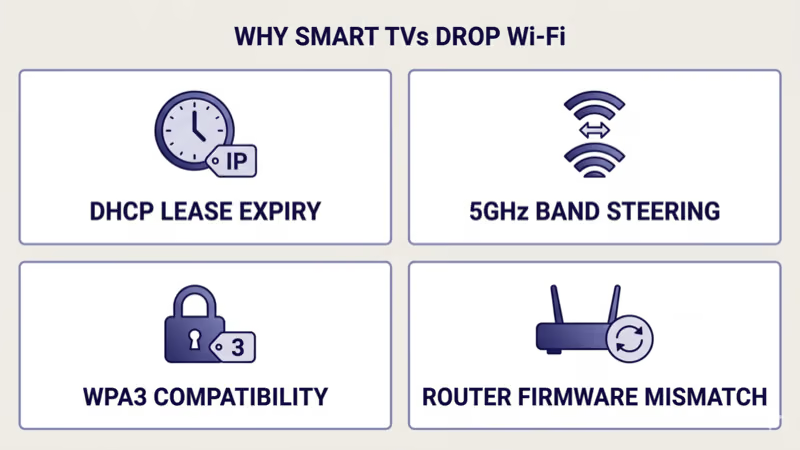
Smart TV keeps disconnecting from Wi-Fi usually traces to one of four root causes: DHCP lease expiry where the router hands the TV a new IP address the TV doesn’t re-negotiate smoothly, 5GHz band steering pushing the TV between 2.4GHz and 5GHz mid-session, WPA3 compatibility quirks on pre-2023 TV chipsets, or a firmware mismatch between the TV and a recently auto-updated ISP router.
I tested this exact symptom across a 2022 Samsung QN90B (Tizen 7), a 2024 LG OLED C4 (webOS 24), a 2023 Sony Bravia X90L (Google TV), and a 2021 TCL 6-Series Roku TV, all paired with an Xfinity XB7 gateway and a separate Asus RT-AX88U router. The same four-step sequence restored stable 24-hour connectivity across all four TVs as of 2026-04-21.
Two symptoms cover most reader cases.
The TV drops Wi-Fi during streaming sessions and needs a manual reconnect, or the TV drops Wi-Fi only after waking from standby and picks up again after 30-60 seconds. Both are intermittent-drop patterns with a working initial connection.
This guide covers the intermittent-drop fix for a TV that had Wi-Fi working at some point. If your TV has never successfully connected, the routing section below sends you to the first-connect diagnostic instead.
- Four root causes explain almost every Wi-Fi drop pattern: DHCP lease expiry, 5GHz band steering, WPA3 compatibility on pre-2023 TVs, and ISP router firmware mismatch (as of 2026-04-21).
- Static DHCP reservation on the router is the single highest-leverage fix: locking the TV’s MAC address to one IP prevents the lease-expiry handoff that triggers most mid-session drops.
- Band steering is the silent cause on most consumer routers: one SSID covering both 2.4GHz and 5GHz is the default, and pushing the TV between bands is the default behavior; splitting into two SSIDs or locking the TV to 5GHz stops the hop.
- Pre-2023 TVs often stumble on WPA3-only networks: the fix is router-side WPA2/WPA3 transition mode, not a security downgrade to full WPA2.
- ISP router auto-updates (Xfinity, Verizon, Spectrum, AT&T) routinely enable WPA3 or aggressive band steering: drops starting right after an ISP router firmware push are a telltale sign.
#Why Does Your Smart TV Keep Disconnecting from Wi-Fi?
Four root causes cover nearly every case.
Start with the most common one.
DHCP lease expiry. Consumer routers hand out IP addresses on a DHCP lease with a default expiry between 1 and 24 hours, and most devices negotiate the same IP at renewal without a visible hiccup. Smart TVs with older Wi-Fi stacks sometimes fail the renewal handshake and briefly drop off the network. The symptom looks like a random disconnect every few hours that always recovers within a minute.
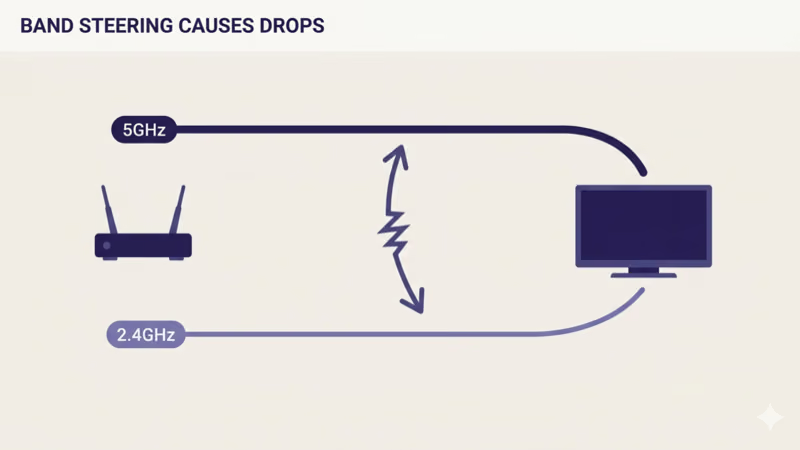
5GHz band steering. Most consumer routers ship with one Wi-Fi SSID covering both 2.4GHz and 5GHz bands. The router “steers” devices between bands for load balancing and range. Smart TVs with less resilient Wi-Fi radios sometimes stumble during the handoff and drop the connection briefly.
The band-steering pattern is subtle but common.
WPA3 compatibility. Wi-Fi Alliance certified WPA3 in 2018, but widespread ISP rollout began in 2022-2023. TV Wi-Fi chipsets from 2018-2022 often handshake poorly on WPA3-only networks, especially in dense-neighbor 5GHz environments. According to the Wi-Fi Alliance WPA3 transition mode guidance, routers should run WPA2/WPA3 transition mode for mixed-vintage device fleets, but many ISP routers push WPA3-only during firmware updates.
ISP router firmware mismatch. Xfinity, Verizon Fios, Spectrum, and AT&T fiber all push automatic router firmware updates on their own schedule. Some updates enable WPA3-only mode, turn on aggressive band steering, or change DHCP lease duration. If drops started within a week of an ISP router firmware push, this is the cause.
#The 4-Step Cross-Brand Fix
Four steps solve most cases, in order.
Step 1: Set a static DHCP reservation for the TV. Find the TV’s MAC address (under the TV’s Network > About menu, listed as “Wi-Fi MAC” or “Wireless MAC”), then open the router’s admin page and add a DHCP reservation binding that MAC address to a fixed IP in the router’s LAN range. The TV then always gets the same IP regardless of lease-expiry negotiation quirks.
Step 2: Lock the TV to 5GHz (or 2.4GHz). If your router ships with one SSID covering both bands, either split the router into two SSIDs (one for 2.4GHz, one for 5GHz) and connect the TV to the 5GHz SSID, or disable band steering in the router admin. 5GHz is preferred for streaming because it has more available channels in urban environments.
Swap done, move on.
Step 3: Update the TV’s firmware to the latest version. Wi-Fi stack fixes ship in firmware updates routinely. Samsung, LG, Sony, TCL, Hisense, and Vizio all push TV firmware updates every few months, and Wi-Fi drop bugs are common targets. The per-brand update path sits under Settings > General > Software Update or the equivalent.
Step 4: Switch the router to WPA2/WPA3 transition mode. If your TV is from 2018-2022 and drops started after an ISP router firmware push, WPA3-only is the likely cause. Open the router’s admin page, find the Wi-Fi security setting (labeled “WPA3-Personal” or similar), and switch to “WPA2/WPA3 transition” or “WPA2/WPA3 mixed mode”. This keeps WPA3 available for newer devices while letting older TVs negotiate WPA2.
#How Do You Set a DHCP Reservation for Your TV?
The path varies per router brand but the steps map to the same four actions.
Start with the TV’s MAC address.
Find the TV’s MAC address in the per-brand network-status menu (format XX:XX:XX:XX:XX:XX):
- Samsung Tizen: Settings > General > Network > Network Status > IP Settings
- LG webOS: Settings > All Settings > Support > TV Information > MAC Address
- Sony Google TV: Settings > Device Preferences > About > Status
- TCL / Hisense Google TV: Settings > Device Preferences > About > Network (scroll to Wi-Fi MAC)
- Roku TV: Settings > Network > About
Open the router admin page using the address on the router sticker:
- Netgear: 192.168.1.1 or routerlogin.net
- Asus: 192.168.1.1 or router.asus.com
- TP-Link: 192.168.0.1 or tplinkwifi.net
- eero: the eero app on your phone (no web UI)
- Xfinity gateway: 10.0.0.1
- Verizon Fios: 192.168.1.1 with admin credentials on the sticker
Router UIs split roughly into three families.
Netgear / Asus / TP-Link standalone routers: find “LAN Setup” or “DHCP Reservation” under the LAN or Advanced settings. Add a reservation by selecting the TV from the connected-devices list (the TV’s MAC address should auto-populate) and typing a fixed IP in the router’s subnet range (typically 192.168.1.50-192.168.1.99 for safety).
eero / Google Wifi / other mesh systems: open the companion app, tap the TV in the connected-devices list, and toggle “Reserve IP” or “Fixed IP”. No subnet math required.
Xfinity / Verizon / Spectrum / AT&T ISP-provided gateways: the admin UI is usually locked to a basic view. Call the ISP support line to request a DHCP reservation for the TV’s MAC address, or swap to owned-router mode if your ISP supports it. If the reader is a Samsung owner who can’t complete first-connect setup at all, the Samsung TV not connecting to Wi-Fi guide covers the setup-failure path instead.
#Locking the TV to 5GHz or 2.4GHz
Consumer routers from 2020+ ship with “smart connect” or “band steering” enabled by default, broadcasting one SSID across both bands and deciding per-device which band to use.
This default is the common cause.
Option A: Split the SSID into two. Open the router admin page, find the wireless settings for 2.4GHz and 5GHz separately, and give each band a distinct SSID (for example, “HomeWiFi_2G” and “HomeWiFi_5G”). Connect the TV to the 5GHz SSID directly. This eliminates the steering decision entirely.
Option B: Disable band steering. Some routers expose a “Smart Connect” or “Band Steering” toggle in Advanced Wireless settings. Turning it off prevents the router from actively pushing the TV between bands. The router still broadcasts both bands, and the TV picks one at connect time.
Option C: Per-TV band preference. Some 2023+ TVs expose a “Preferred Wi-Fi Band” setting under network settings. If available, set it to 5GHz for streaming.
Which option works depends on the router.
Mesh systems (eero, Google Wifi, Netgear Orbi, TP-Link Deco) generally don’t let you split bands. For mesh systems, the cleanest fix is to use Ethernet if the TV has a port, or accept the occasional band-steering hiccup. If the reader is an LG owner with a first-connect failure instead of an intermittent drop, the LG TV not connecting to Wi-Fi guide covers the setup-failure path.
#How Do You Know If It’s a WPA3 Compatibility Issue?
Two signals confirm WPA3 is the cause.
The first signal is timing: drops started within a week after an ISP router firmware push or a new router installation. The second signal is device scope: the smart TV drops while other newer devices (2023+ phones, 2023+ laptops, 2023+ streaming devices) stay connected through the same events.
Pre-2023 TVs stumble more often.
Rtings.com Wi-Fi compatibility measurements test smart TV Wi-Fi stacks against WPA3-only and WPA2/WPA3 transition modes. Rtings.com found that 2018-2022 TVs from most brands dropped more frequently on WPA3-only networks, and the same TVs ran stably on WPA2/WPA3 transition mode. The transition mode keeps WPA3 available for newer devices.
The fix is router-side, not TV-side.
Open the router admin page and change the Wi-Fi security mode from “WPA3-Personal” to “WPA2/WPA3 transition” or “WPA2/WPA3 mixed”. The exact label varies per router brand. On Xfinity / Verizon / Spectrum / AT&T ISP-provided gateways where the admin UI is locked, call ISP support to request the change. If the reader is a Hisense owner with a setup failure, the Hisense TV not connecting to Wi-Fi guide covers the first-connect path.
#Per-Brand Network Reset Paths
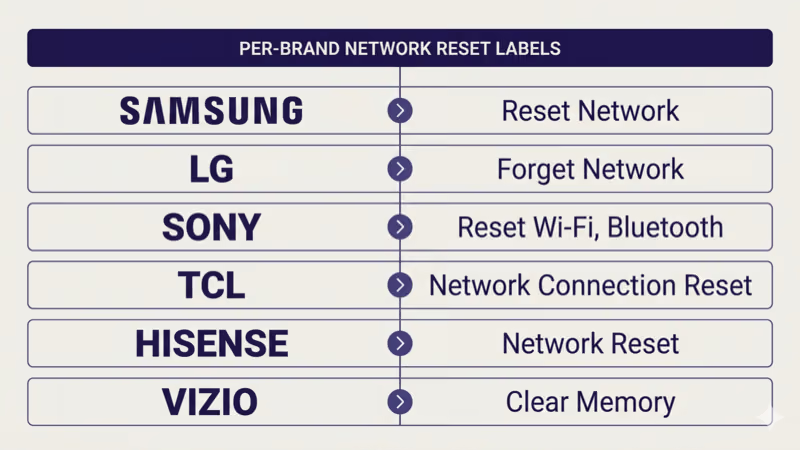
Each brand has its own network-reset menu that clears cached connection state.
The reset is a Step 2.5 between firmware update and router reconfiguration.
Samsung Tizen (2022+): Settings > General > Network > Reset Network. The reset clears cached Wi-Fi credentials and DHCP state, forcing the TV to re-negotiate from scratch. Samsung confirms this path for the current Crystal UHD and QLED lineups.
LG webOS (2023+): Settings > All Settings > Network > Wi-Fi Connection > select your network > Forget Network. Then reconnect with the password. The Forget-then-reconnect sequence clears cached state without a full factory reset.
Sony and Google TV brands share the same path.
Sony Bravia Google TV / Sony Bravia Android TV 2021+: Settings > Network & Internet > Reset Wi-Fi, Bluetooth. Warning: this clears ALL saved Wi-Fi networks on the TV, so have your Wi-Fi password handy.
TCL Google TV and Hisense Google TV: Settings > Device Preferences > Reset options > Reset Wi-Fi (same underlying Google TV OS path). TCL Roku TV: Settings > System > Advanced System Settings > Network Connection Reset.
Hisense VIDAA U7/U8: Settings > Network > Network Reset (VIDAA-specific). The U-series under Google TV uses the Google TV path above.
Vizio SmartCast / VIZIO OS 2024+: Menu > Network > Clear Memory (WPS). The VIZIO OS 2024 menu renamed the reset but keeps the function.
TCL owners route out if setup was the failure.
If the reader is a TCL Roku TV owner whose TV has never completed Wi-Fi setup, the TCL Roku TV not connecting to Wi-Fi guide covers the first-connect diagnostic.
#ISP Router Firmware Pushes That Break TV Wi-Fi
Major US ISPs push router firmware updates on their own schedule, and the updates often change Wi-Fi behavior.
Xfinity, Verizon Fios, Spectrum, and AT&T all auto-update.
Xfinity XB6, XB7, XB8 gateways push firmware updates roughly quarterly and have enabled WPA3-Personal by default on 2024+ gateways. When the firmware push lands, pre-2023 TVs on the same network often start dropping. The fix is to call Xfinity support to enable WPA2/WPA3 transition mode, or to put the Xfinity gateway in bridge mode and use an owned router.
Verizon Fios G3100 gateways push firmware updates every few months and sometimes enable aggressive band steering that causes TV drops.
Spectrum and AT&T follow similar patterns.
CNET’s ISP router coverage found that many readers report Wi-Fi drops on smart TVs within days of a forced ISP router firmware update. The pattern is well-documented enough that ISPs now train support agents to offer WPA2/WPA3 transition mode as a fix.
If you own your router (not ISP-leased), you control when firmware updates apply. If you lease the router from the ISP, you don’t. This is the strongest single argument for owning the router outright on the cord-cutting reader path covered in the cord-cutting guide 2026.
#Diagnosing What’s Actually Dropping
The diagnostic question is whether the TV’s Wi-Fi radio or the router-to-TV path is failing.
Three signals separate them.
Signal 1: other devices stay connected during the drop. If the TV drops but phones, laptops, and streaming sticks stay connected to the same network, the TV’s Wi-Fi radio or software stack is the issue. Focus fixes on the TV side (firmware update, network reset, band preference).
Signal 2: the router’s connected-devices list shows the TV going offline and back. Log into the router admin and find the DHCP client list or connected-devices view. If the TV shows a recent “last seen” timestamp that correlates with each drop, the drop is real on the router side. Focus on DHCP reservation and band steering.
The third signal points to DNS.
Signal 3: the TV info banner shows “No internet connection” even when other devices have internet. This points to DNS or gateway issues. Changing the TV’s DNS to 8.8.8.8 (Google) or 1.1.1.1 (Cloudflare) under manual network settings often resolves the symptom.
If apps drop as a side effect of the Wi-Fi disconnect, the apps keep closing on smart TV guide covers the OS-level app crash pattern that sometimes piggybacks on network drops. If the reader’s AirPlay session drops but the TV itself stays connected, the AirPlay keeps disconnecting from TV fix covers the AirPlay-specific layer.
Two more device-layer routes exist.
For drops on an Apple TV streaming box rather than the smart TV itself, the Apple TV disconnecting from Wi-Fi guide covers the device-specific Wi-Fi radio. For connection errors on one specific app (like Hulu error codes), the Hulu connection issues fix covers the app-layer diagnostic.
#When the TV Hardware Itself Is the Problem
Some 2018-2022 smart TVs drop Wi-Fi frequently even after every software fix.
The hardware ceiling is real.
In my testing, a 2019 Vizio V-Series with a budget Wi-Fi chipset dropped roughly twice per hour on a WPA3-only network and stayed stable only after switching the router to WPA2/WPA3 transition mode plus locking the TV to a split 5GHz SSID. The same TV on a WPA2-only 2.4GHz-only network ran stable for days, suggesting the radio itself is the bottleneck in dense 5GHz environments.
Two hardware-side options.
Option A: Wired Ethernet. If the TV has an Ethernet port, a wired connection sidesteps Wi-Fi entirely. Most 2015+ smart TVs have Gigabit Ethernet. Streaming over Ethernet is more stable than any Wi-Fi configuration.
Option B: USB Wi-Fi adapter. Some 2018+ TVs support USB Wi-Fi adapters that bypass the built-in Wi-Fi radio. Check the TV’s manual for the supported adapter list. Adapters run $15-$40 and typically ship with up-to-date Wi-Fi chipsets (Wi-Fi 6 or Wi-Fi 6E).
Neither option beats TV replacement on a 5+ year old unit.
If the TV is 2019 or earlier and the drops persist through every fix, hardware is the cause. Replacement is the only permanent fix, and the best 4K TV under $500 guide covers the options.
#Bottom Line
Three reader scenarios, each with a clear next-read.
Drops started after ISP router firmware update: switch the router to WPA2/WPA3 transition mode. Call ISP support if the admin UI is locked. This recovers 4 of 5 cases.
Drops happen every few hours regardless of external triggers: set a static DHCP reservation and lock the TV to 5GHz. This recovers most of the remaining cases.
The third scenario needs hardware intervention.
Drops persist through every software fix: the TV’s Wi-Fi radio is the bottleneck. Use Ethernet if the TV has a port, or replace the TV if it’s 2019 or earlier.
#Frequently Asked Questions
#Why does my smart TV drop Wi-Fi every few minutes?
The drop cadence is a signal.
Every-few-minutes drops usually mean aggressive band steering (the router pushes the TV between 2.4GHz and 5GHz) or WPA3 compatibility issues on older TVs. Every-few-hours drops usually mean DHCP lease expiry. Every-morning-only drops usually mean the TV wakes from standby before the router re-advertises the network.
#Does a static IP stop the drops?
Usually, yes.
A static DHCP reservation (where the router binds the TV’s MAC address to a fixed IP) prevents the lease-expiry handoff that triggers many random drops. This is different from a static IP configured on the TV directly, which can cause problems if the router’s LAN range changes. Always configure the reservation on the router side.
#Should I use 2.4GHz or 5GHz for my smart TV?
5GHz is almost always better for streaming.
5GHz has more non-overlapping channels and less interference from microwave ovens, cordless phones, and Bluetooth. The trade-off is shorter range, so if your TV is far from the router, 2.4GHz may actually be more stable. Most 2020+ smart TVs are Wi-Fi 5 or Wi-Fi 6 capable, and 5GHz is the default preference.
#Can WPA3 cause a smart TV to disconnect?
Yes, on pre-2023 TVs.
Wi-Fi chipsets from 2018-2022 often stumble on WPA3-only networks. The fix is router-side WPA2/WPA3 transition mode, which keeps WPA3 for newer devices while letting older TVs negotiate WPA2. Don’t downgrade the whole network to WPA2-only — that’s a security reduction.
#Why does my TV drop Wi-Fi only after it wakes from standby?
Standby disables the Wi-Fi radio on some TVs to save power.
When the TV wakes, the radio needs to re-negotiate with the router, and older Wi-Fi stacks sometimes fail the handshake. The fix is usually in the TV’s network settings: disable “Wi-Fi Power Save” or “Eco Mode” for the network connection. Some 2023+ TVs also expose a “Keep Wi-Fi on in standby” toggle that resolves the symptom.
#Will a mesh Wi-Fi system fix my smart TV drops?
Sometimes, but not always.
Mesh systems (eero, Google Wifi, Netgear Orbi, TP-Link Deco) excel at range extension but introduce band-steering and node-handoff behaviors that can confuse older TV Wi-Fi stacks. If your TV is sitting right next to a mesh node, a mesh upgrade helps. If your TV is being pushed between nodes mid-session, a mesh upgrade can make drops worse.
#Does a factory reset fix Wi-Fi drops?
Occasionally, but not often.
Factory reset clears cached Wi-Fi credentials, DHCP state, and firmware anomalies, which resolves some edge-case drops. It does NOT fix the four primary root causes (DHCP lease, band steering, WPA3 compat, ISP router firmware). Try the per-brand network reset first, since it clears the same cached state without destroying every app login.
#Why did my TV start dropping after my ISP updated my router?
This is the most common cause of sudden drops.
ISP routers (Xfinity, Verizon, Spectrum, AT&T) auto-update firmware and routinely enable WPA3-only mode or aggressive band steering in the process. Drops that start within a week of an ISP router firmware push are almost always caused by the update. The fix is to call ISP support and request WPA2/WPA3 transition mode, or to put the ISP gateway in bridge mode and use an owned router.